If you manage LinkedIn Ads campaigns and you’re not using Claude Code yet, you’re leaving serious efficiency on the table.
Using Claude Code with your LinkedIn Ads opens up enormous possibility, lots of cool new charts & visualizations, and anything else your imagine can come up with. 🤩
In this tutorial, I’ll walk you through two approaches, from the quick and easy to the full-power custom setup:
- Part 1 [10 minutes]: Connect a pre-built LinkedIn Ads MCP server to Claude Code for instant analytics access
- Part 2 [1 hour]: Build your own LinkedIn Ads API wrapper using Claude Code for complete control over every endpoint
Whether you’re an in-house B2B marketer running campaigns or an agency managing multiple ad accounts, this guide will show you how to get LinkedIn Ads data flowing into Claude Code so you can analyze, optimize, and automate like never before.
Let’s get into it!
NEW Claude to LinkedIn Ads Video Tutorial added:
What You’ll Need Before Starting
Before we dive in, make sure you have these prerequisites set up:
- Claude Code installed: You’ll need an Anthropic account and Claude Code installed on your machine. Claude Code requires Node.js 20+ to run. If you haven’t set it up yet, install it globally with
npm install -g @anthropic-ai/claude-codeand then runclaudein your terminal to authenticate. - A LinkedIn account with Campaign Manager access: You need to be an admin or account manager on at least one LinkedIn Ads account.
- Basic comfort with the terminal: You don’t need to be a developer, but you should be able to run commands in your terminal.
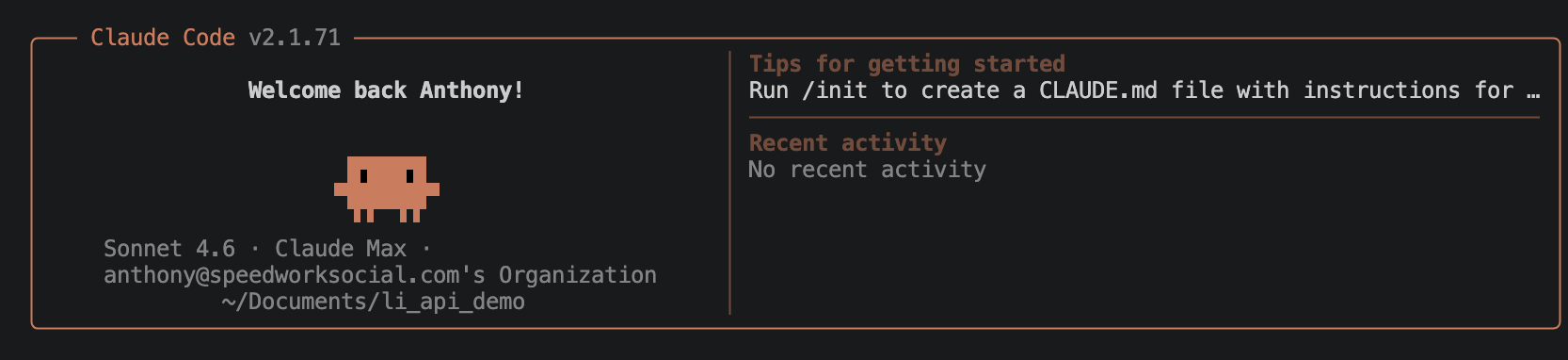
Claude Code running in the terminal with the welcome screen visible
Part 1: Connect a LinkedIn Ads MCP Server to Claude Code (The Quick Start)
MCP stands for Model Context Protocol. It’s an open standard that lets AI tools like Claude Code connect to external data sources and APIs through standardized “servers.” Think of MCP servers as plug-and-play connectors that give Claude Code new capabilities.
The fastest way to get LinkedIn Ads data into Claude Code is by connecting an existing MCP server that someone has already built. There are several community-built options available, including dedicated LinkedIn Ads MCP servers on GitHub and managed solutions from companies like Radiate B2B and GrowthSpree.
For this tutorial, we’ll use the linkedin-ads-mcp package from npm, which is one of the most straightforward to set up.
Step 1: Add the MCP Server to Claude Code
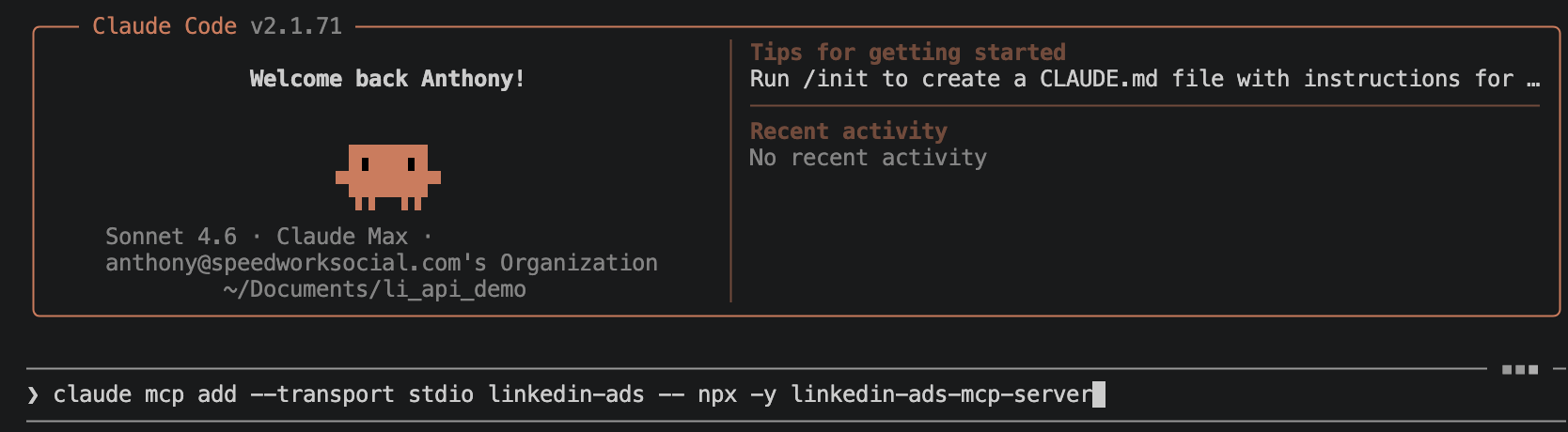
Open your terminal and run the following command. This registers the LinkedIn Ads MCP server with Claude Code:
claude mcp add --transport stdio linkedin-ads -- npx -y linkedin-ads-mcp-serverWhat’s happening here:
claude mcp addregisters a new MCP server--transport stdiotells Claude Code this server runs locally on your machinelinkedin-adsis the name you’re giving this server (you can call it whatever you want)npx -y linkedin-ads-mcp-serveris the command that actually runs the server
Run claude mcp add to install the MCP
Step 2: Create a LinkedIn Developer App
Everything starts at the LinkedIn Developer Portal. This is where you register your application and get the credentials you need to access the API.
2.1 Go to the LinkedIn Developer Portal
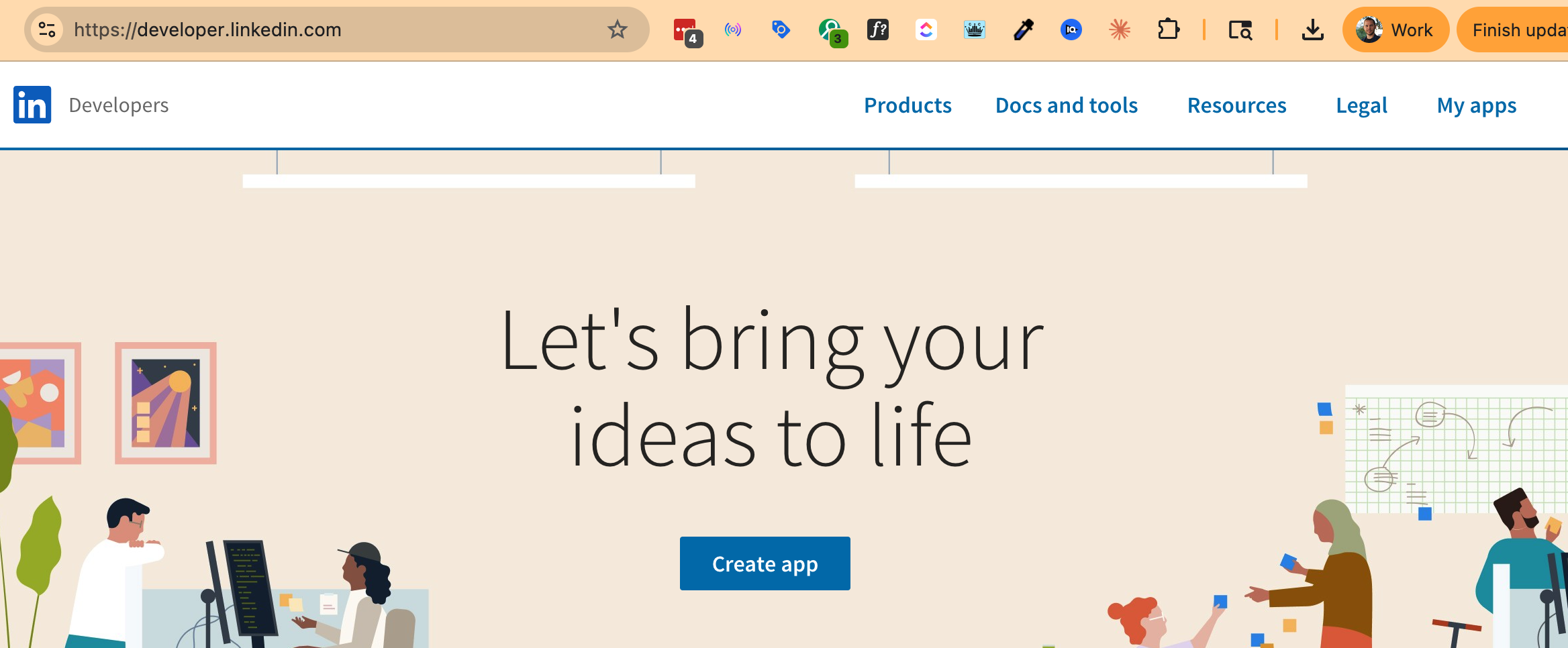
Navigate to https://developer.linkedin.com/ and sign in with your LinkedIn account.
Go to the Developer Portal and Click Create app
2.2 Click “Create App”
You’ll find this in the top navigation or under “My Apps.” Click “Create App” to start the process.
2.3 Find Your Client ID and Client Secret
Once your app is created, go to the “Auth” tab. You’ll see:
- Client ID: A public identifier for your app
- Client Secret: A private key (keep this safe and never share it)
Copy both of these. You’ll need them for authentication.
Get your ID and Secret and add your redirect URL
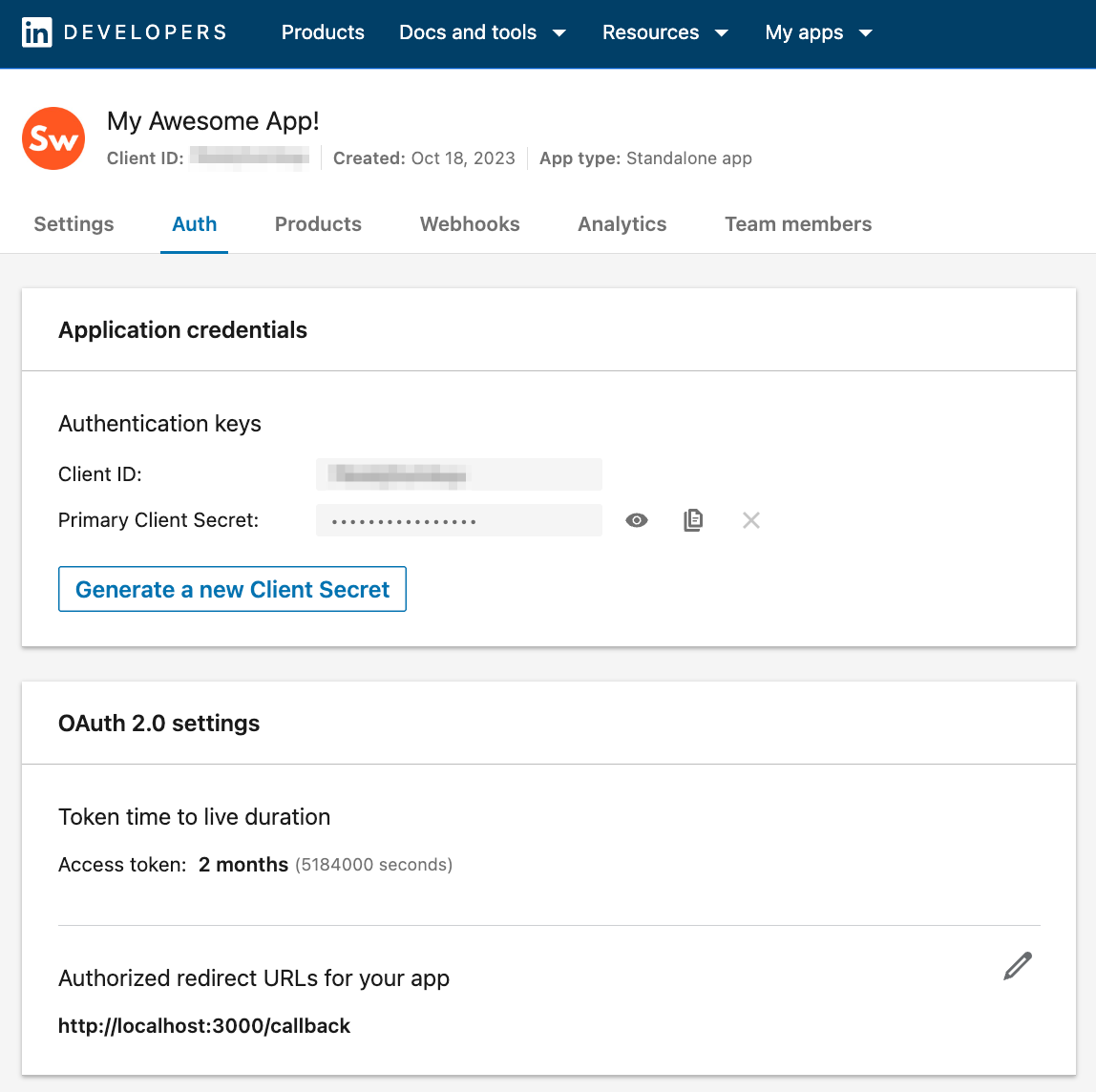
2.4 Set Your Redirect URL
Still on the Auth tab, scroll down to “Authorized redirect URLs for your app.” Add a redirect URL. For local development, use:
http://localhost:3000/callbackThis is where LinkedIn will send the user back after they authorize your app. Click “Update” to save.
2.5 Request Advertising API Access
Go to the “Products” Tab. Find “Advertising API” in the list of available products and click “Request access.”
There can be a short approval period, but it usually only takes a couple of days max.
2.6 Add your Ad Account to the list
Once approved, then go to View Ad Accounts and add your target ad account that you’ll be working with to this list. This is important to make sure you can push edits to that ad account.

Click View Ad Accounts and add your ad account ID to the list.
While you’re on this page, also click on Endpoints, and then on the next page, note down the Product version: YYYYMM that your app is using. Note this value and we’ll use it later when we’re setting up the API connection.
Step 3: Configure Your LinkedIn Access Token
The MCP server needs a LinkedIn access token to authenticate with the API. You’ll need to set this as an environment variable, in the .env file:
claude mcp add --transport stdio linkedin-ads \
  -e LINKEDIN_ACCESS_TOKEN=your_token_here \
  -- npx -y linkedin-ads-mcp-server
(We’ll cover how to get this access token in Part 2 when we set up the LinkedIn Developer App. If you already have one, plug it in here.)
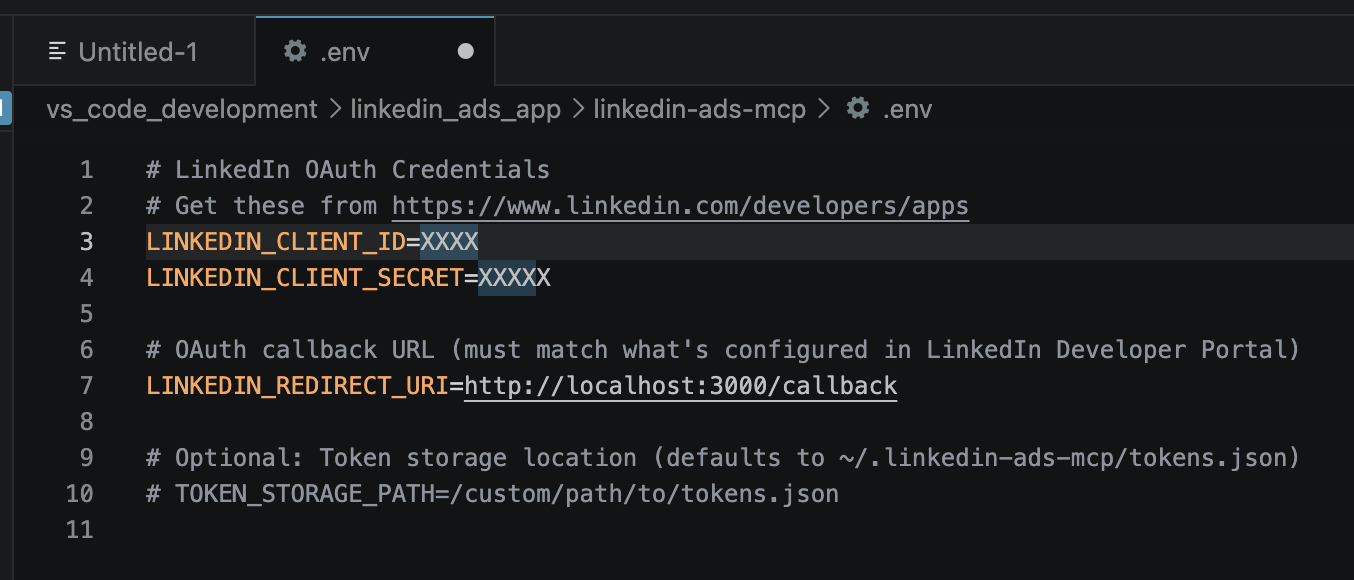
Step 4: Verify the Connection
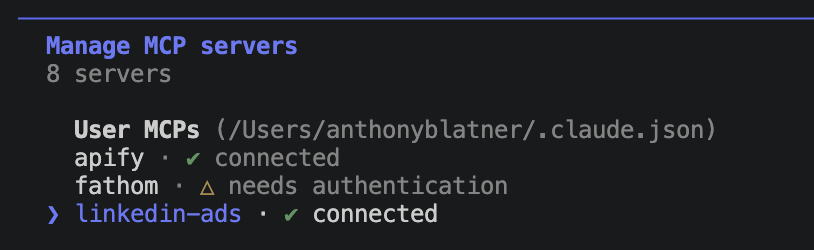
Restart Claude Code (exit and relaunch), then run the /mcp command inside Claude Code to check that your server is connected:
> /mcpYou should see linkedin-ads listed as connected with a set of available tools.
Type /mcp to verify that it’s connected
Step 5: Start Querying Your LinkedIn Ads Data
Now you can ask Claude Code questions about your campaigns in plain English 😍
> List my LinkedIn ad accounts

> Show me campaign performance for the last 30 days

> Which job functions are responding best to my ads?

> Compare this week's performance vs last week

> What's my cost per lead for the lead gen campaigns?
Claude Code will use the MCP server tools to pull live data from your LinkedIn Ads account and give you structured answers.
Start talking to Claude Code to analyze your ads!
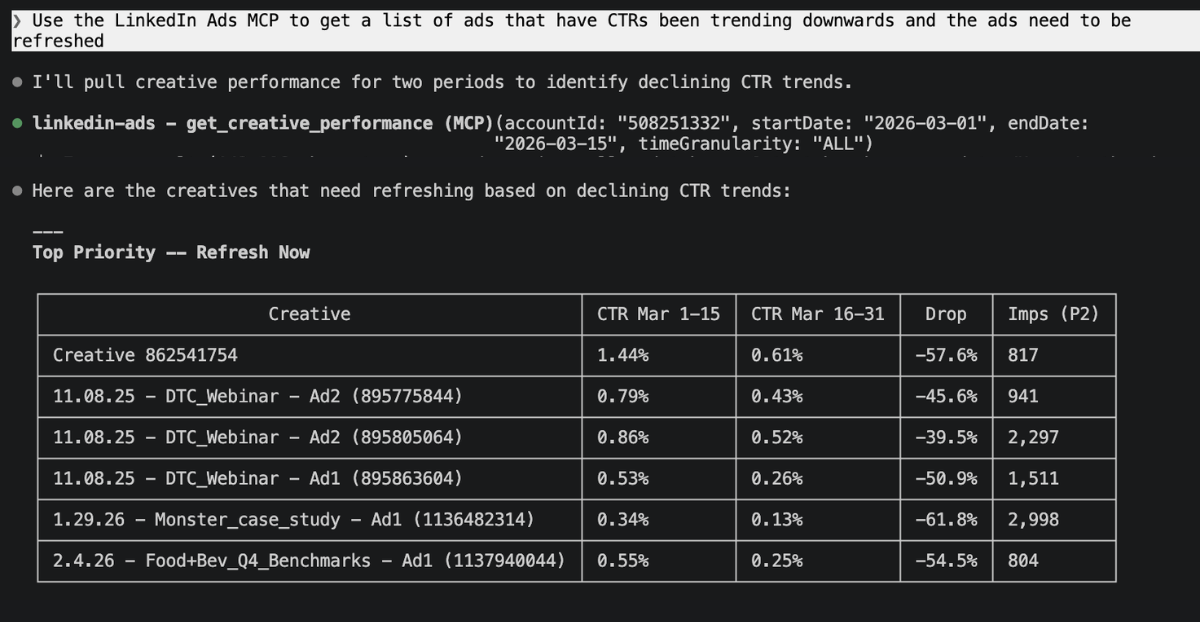
What the MCP Approach Gets You
The MCP server approach is great for read-only analytics and quick insights. Most LinkedIn Ads MCP servers expose tools for things like:
- Listing ad accounts and campaign groups
- Pulling campaign performance metrics (spend, CTR, CPL, conversions)
- Viewing creative performance
- Analyzing audience demographics (job function, seniority, company size, industry)
- Tracking conversion data
- Viewing lead gen form analytics
The limitation: Pre-built MCP servers only expose a subset of LinkedIn’s full Marketing API. If you want to create campaigns, upload creatives, manage audiences, or access any endpoint you want, you’ll need to build your own wrapper. That’s Part 2. 👇👇👇
Part 2: Build Your Own LinkedIn Ads API Wrapper with Claude Code (Full Control)
This is where it gets powerful. Instead of relying on someone else’s MCP server, you’re going to use Claude Code to build a custom API wrapper that talks directly to LinkedIn’s Marketing API. This gives you full access to every endpoint, including campaign creation, audience management, creative uploads, and advanced reporting.
The best part? Claude Code does the heavy lifting. You describe what you want, and it writes the code.
Here’s the full walkthrough.
Step 1: Download and Prepare the API Documentation
This is a step most tutorials skip, but it’s critical for getting the most out of Claude Code. Claude Code works best when it has documentation to reference while building your tools.
1.1 Gather the Key Documentation Pages
The LinkedIn Marketing API documentation lives on Microsoft Learn. The most important pages to have on hand are:
- Marketing API Overview: https://learn.microsoft.com/en-us/linkedin/marketing/
- Ad Accounts API: The endpoint reference for listing and managing ad accounts
- Ad Campaigns API: Endpoints for creating and managing campaigns
- Ad Creatives API: Endpoints for managing ad creatives
- Ad Analytics API: The reporting endpoint for pulling performance data
- Authentication Guide: The OAuth 2.0 flow documentation
1.2 Save the API Documentation Locally
We save the API documentation so that Claude knows how to communicate with it and it doesn’t have to guess. This cuts down on the number of errors you may see.
Just ask Claude to get the documentation for you. Swap in your version number (see the screenshot earlier on when we clicked on Endpoints), and swap in your local workspace folder.
Please get the LinkedIn Ads API documentation for the Advertising API for version 202509 with everything you need to do to fully utilize the API. Output it in my [your local folder name] folder in an api_documentation folder
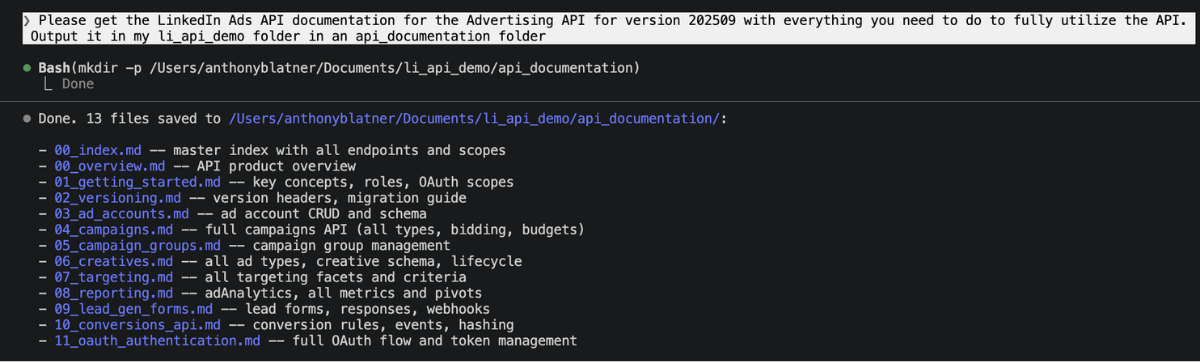
Download the API docs to guide Claude Code
Step 4: Build a LinkedIn Ads API Wrapper with Claude Code
Now the fun begins. Fire up Claude Code in your project directory and start building.
Now that you have the API documentation, build a wrapper around the LinkedIn Ads API, so I can access and use any of the API calls and endpoints available. Include an auth module that implements LinkedIn's OAuth 2.0 three-legged flow using my Client ID and Client Secret. Store tokens securely in a local .env file. Request the following auth scopes: r_ads, rw_ads, rw_conversions, r_ads_leadgen_automation, r_ads_reporting, r_organization_social, w_organization_social
API wrapper is done! Now use it.
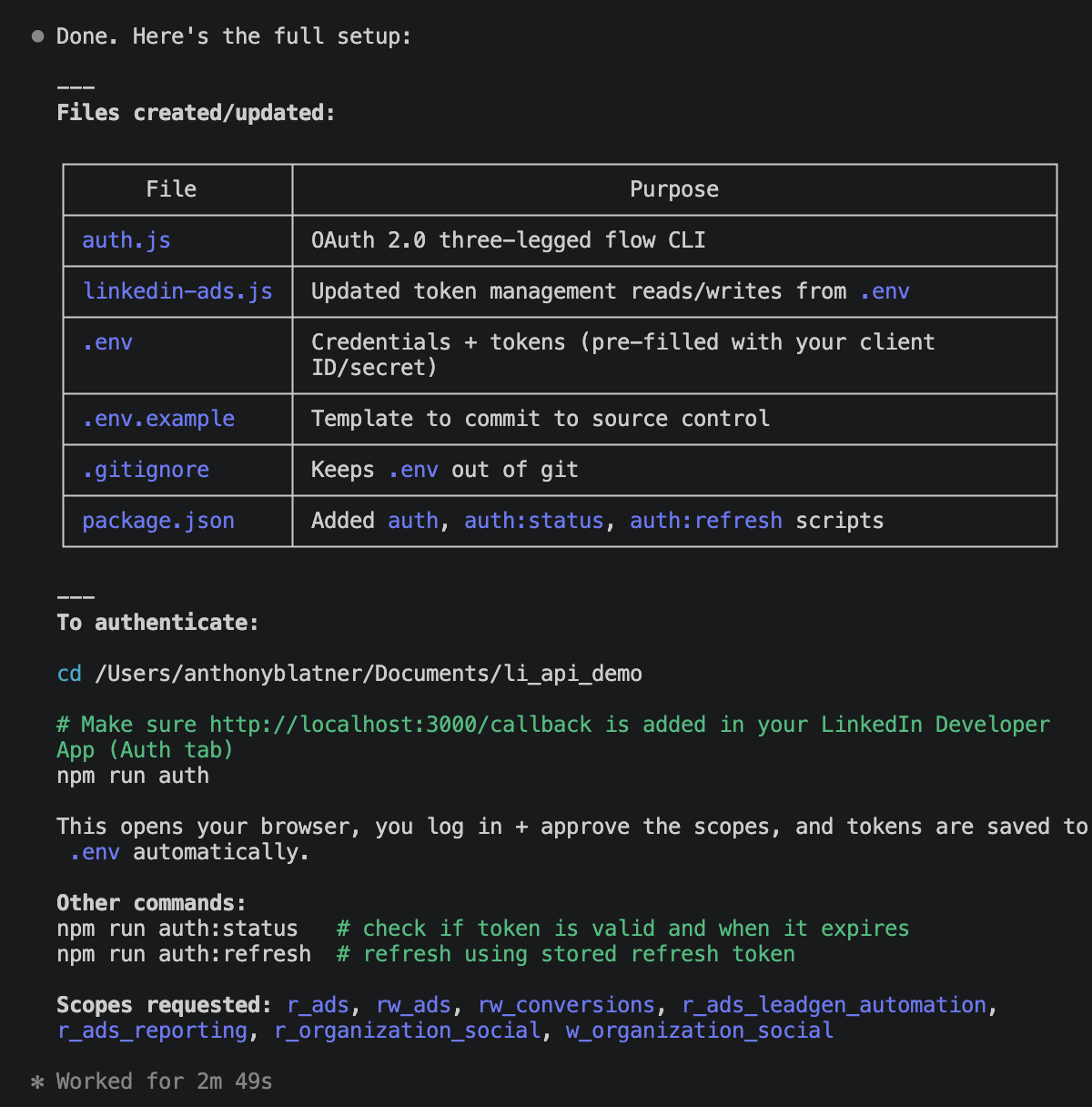
Step 5: /exit and restart Claude Code so all changes take effect

Exit and restart Claude Code so changes take effect
Step 6: Tell Claude Code to Login to the LinkedIn Ads API
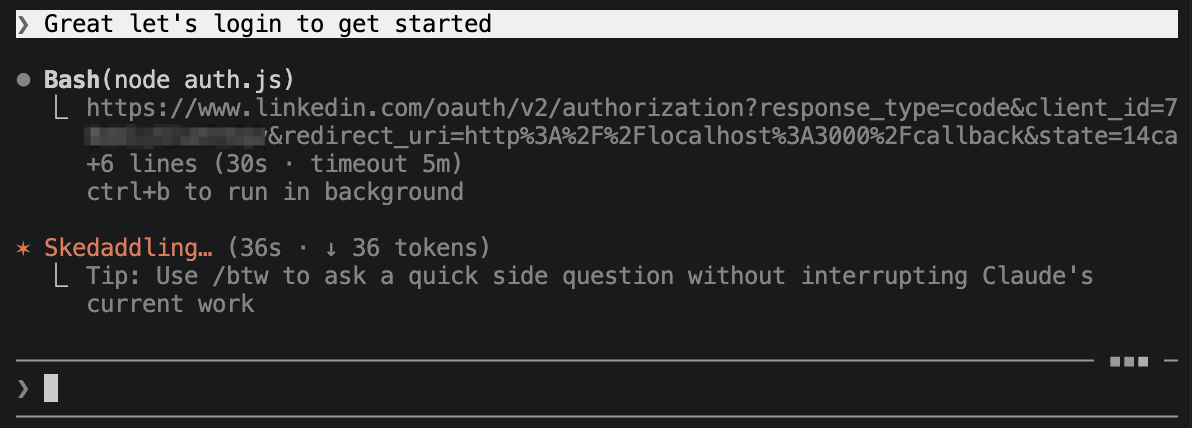
Tell claude code to login and get started
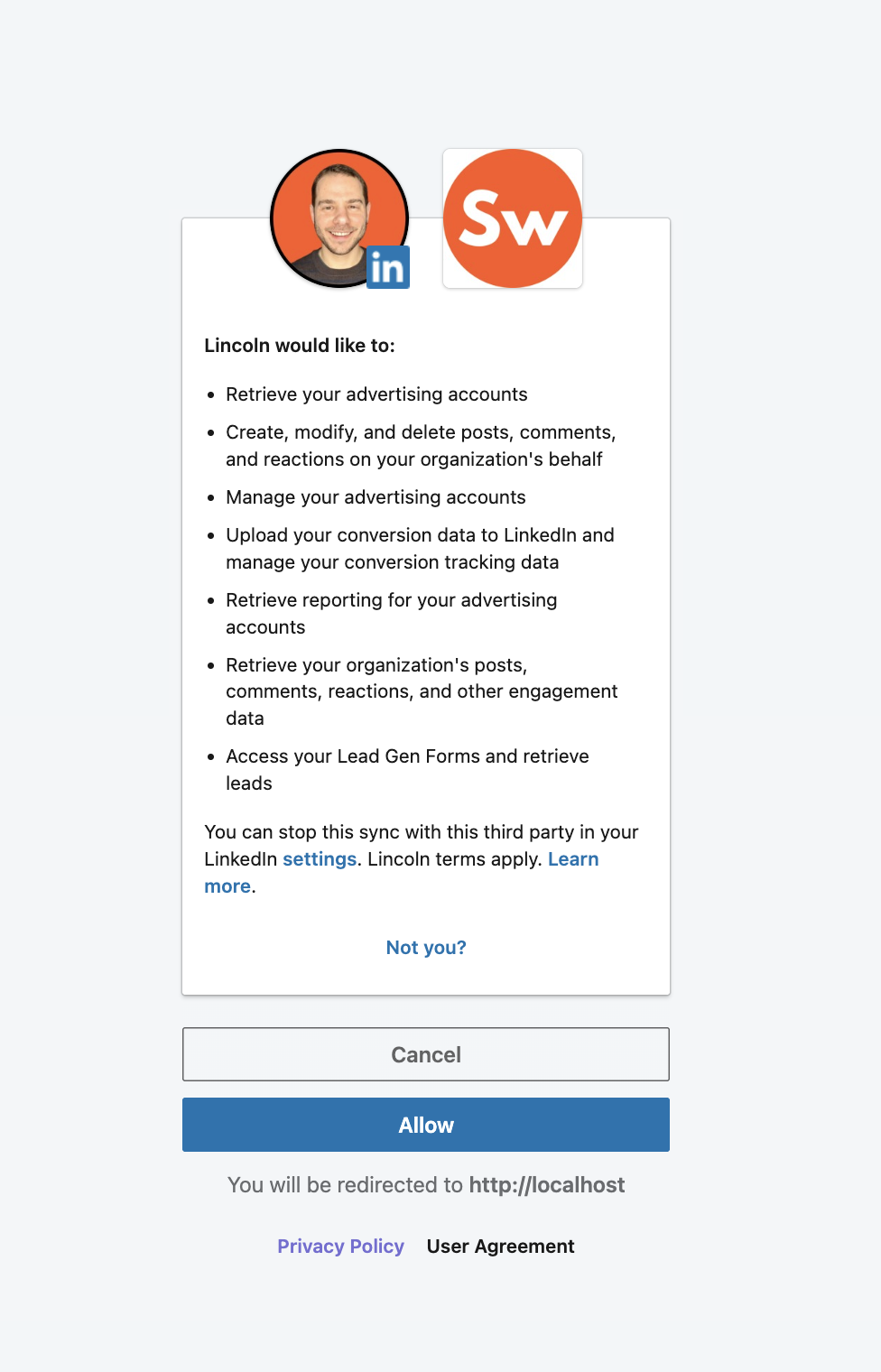
Click Allow and finish authenticating with the API
Step 7: Use your LinkedIn ads API by talking to Claude Code!
Woohoo!! 🥳
With authentication handled, now you can talk to Claude Code to do anything you want. It will continue to build wrapper functions and supporting functions based on your requests.
Here’s where you describe what you want in plain English. See some examples below. 👇👇👇
Real-World Use Cases: What You Can Actually Do
Once you have LinkedIn Ads connected to Claude Code, here are some of the workflows that become possible:
Weekly Performance Reports “Pull last week’s campaign performance across all active campaigns, compare to the previous week, and flag anything with a CPL increase over 20%.”
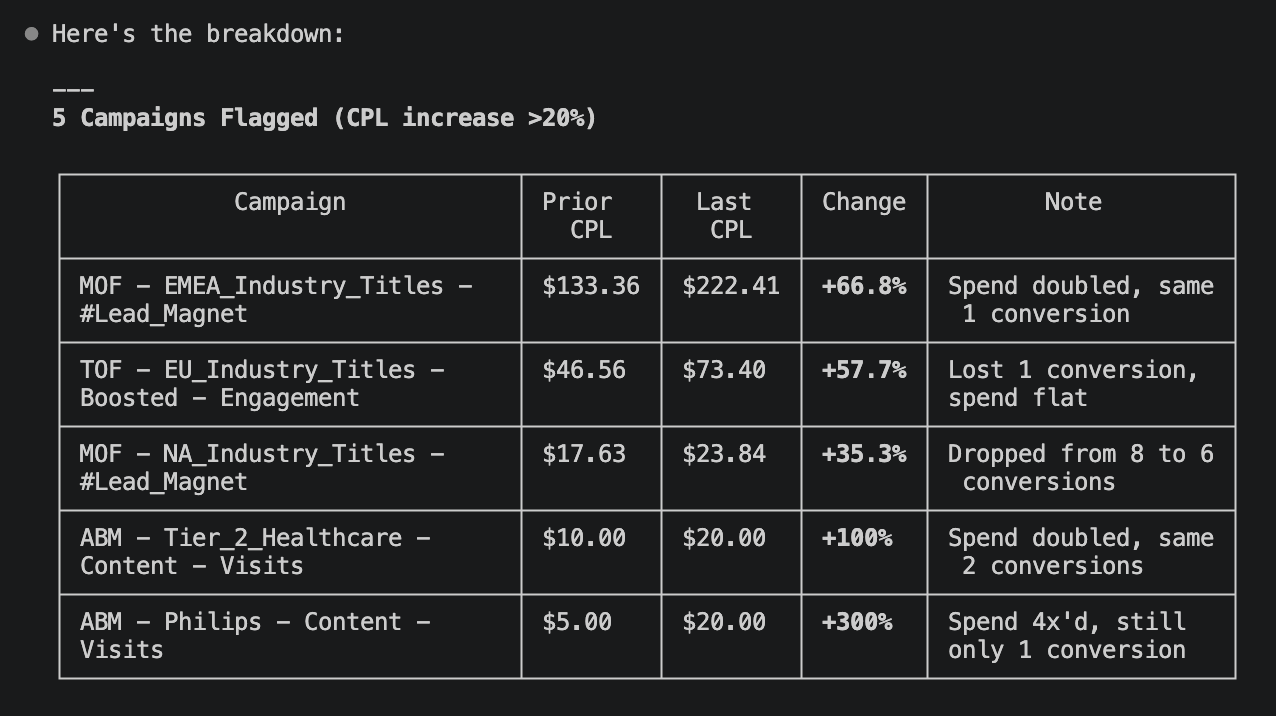
Analyze your campaigns for trends!
Creative Analysis “Which ad creatives have the highest CTR but lowest conversion rate? These might have a messaging disconnect I need to fix.”
Exclude a Company across all Campaigns “Please exclude the company [Company-to-exclude] from every campaign in ad account ID: [Your-ad-account-id]
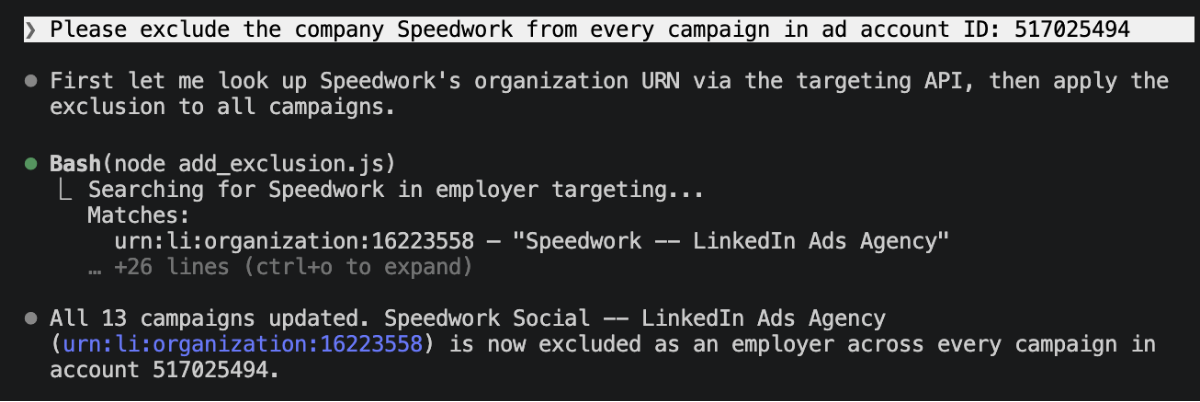
You can add exclusions in bulk. Such a time saver!“
Budget Reallocation “Analyze spend efficiency across all campaigns and recommend how I should redistribute my $50K monthly budget based on cost-per-qualified-lead data.”
Troubleshooting Common Issues
Claude will ask for lots of edit permissions. You can usually click yes and don’t ask again.

Whenever Claude asks for permission, Click Yes to continue.
OAuth token expired LinkedIn access tokens expire after 60 days. If your API calls start failing, you’ll need to re-authenticate. Build a token refresh mechanism into your wrapper (Claude Code can help with this). Just tell Claude to log back in!
“Unauthorized” API errors Make sure your app has been approved for the Advertising API product, and that your OAuth scopes include at least the ones listed above in the tutorial.
MCP server not showing in /mcp Exit Claude Code completely and relaunch. MCP server configurations are loaded at startup.
Rate limiting LinkedIn’s API has rate limits that vary by endpoint. If you’re making a lot of calls, add retry logic with exponential backoff. Ask Claude Code: “Add rate limiting and retry logic to all API calls.”
What’s Next
Connecting LinkedIn Ads to Claude Code is just the beginning. Once you have this infrastructure in place, you can:
- Build automated dashboards that pull fresh data every morning
- Create campaign creation workflows where you describe a campaign in plain English and Claude Code sets it up through the API
- Integrate with other tools by connecting additional MCP servers (CRM, Slack, Google Sheets) alongside your LinkedIn Ads server
- Build a full campaign management CLI that lets you manage LinkedIn Ads entirely from your terminal
The intersection of AI and advertising platforms is still early. If you’re in the LinkedIn Ads space, getting comfortable with these tools now puts you ahead of the curve.
Final Thoughts
The MCP approach in Part 1 gets you up and running in 5 minutes, but has limited access. Building your own wrapper in Part 2 takes more time upfront but gives you unlimited flexibility and full API control.
For most B2B marketers, I’d recommend starting with Part 1 to see the value, then graduating to Part 2 when you want to build custom workflows or need write access to create and manage campaigns programmatically.
If you have questions about connecting LinkedIn Ads to Claude Code, or want to see specific use cases covered in more depth, drop me a message on LinkedIn, or schedule a call to get help with your LinkedIn Ads.