TL;DR: Create your LinkedIn Event from your Company Page, not your personal profile. That unlocks the registration form and Event Ads. Host it as a LinkedIn Live if you can, because it is the easiest format to track and promote. Design the banner like a YouTube thumbnail, add your speakers, and connect the registration form to your CRM with Zapier. Then fill the room: have every speaker invite up to 1,000 connections per week, post about it organically, and put paid behind ads and the speakers’ posts.
LinkedIn Events are one of the most underused lead gen tools on the platform. Most B2B teams treat them as a calendar listing: create the event, post about it once, and hope people show up.
The teams that fill their events treat them as a campaign. The event page is the landing page, the speakers are the distribution, and the registration form feeds the pipeline.
Below is the exact process we use to set up and promote LinkedIn Events for B2B clients, from choosing the format to the clips you get after it ends.
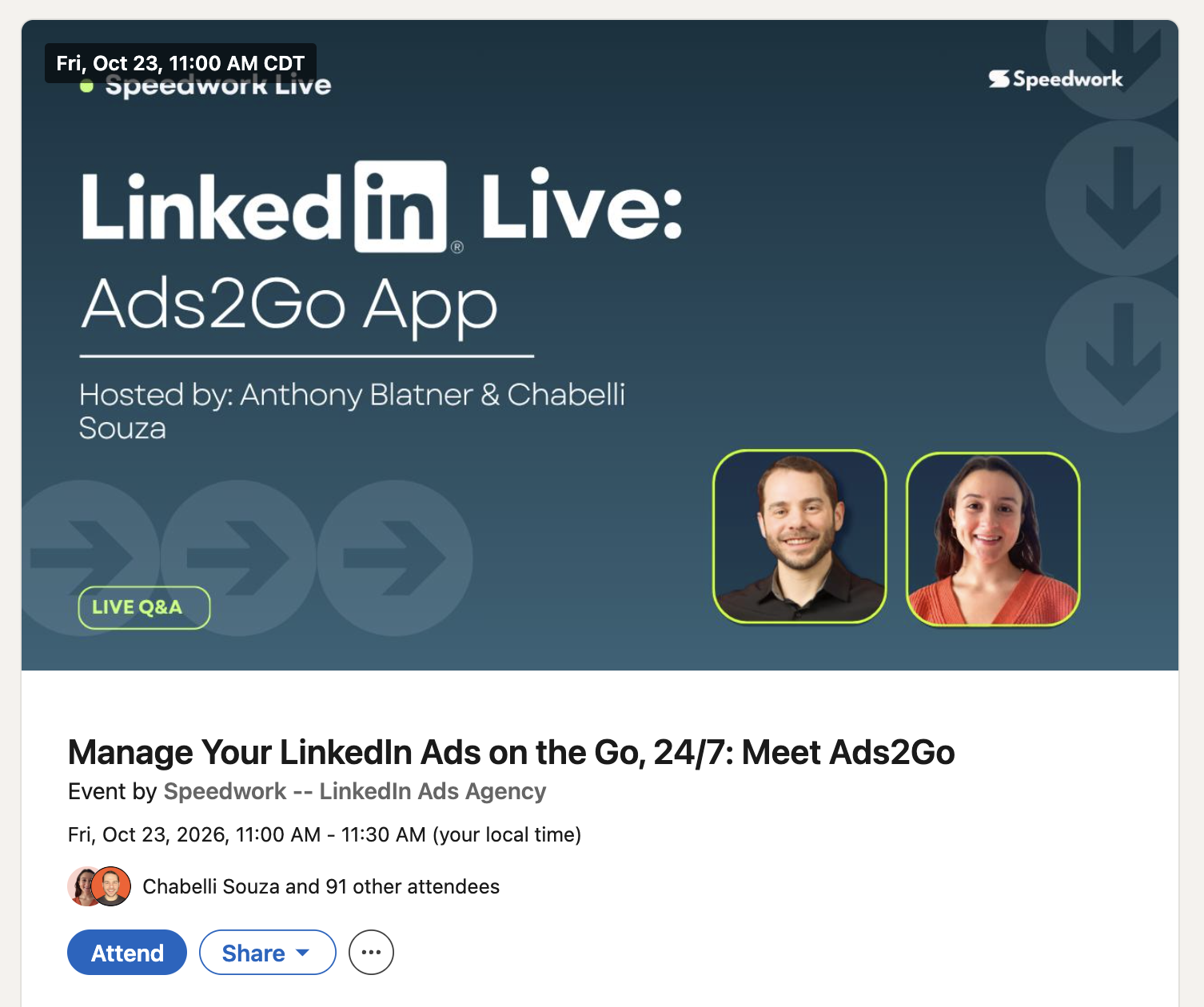
A finished LinkedIn Event page: a scroll-stopping banner, clear title, date and time, the host Company Page, and a visible attendee count.
What is a LinkedIn Event?
A LinkedIn Event is a dedicated event page on LinkedIn where people can register, see who else is attending, and get reminders. It can be online or in person, and it can be created from a personal profile or a Company Page.
Every new event is public, so anyone on LinkedIn can find it and register. That is a big part of the value: the event page carries social proof (attendee count, speakers, the host company) right inside the feed where your buyers already are.
For public, marketing-driven events, that visibility is the point: LinkedIn gives events organic distribution that a standalone registration page doesn’t get.
Step 1: Choose your event type and format
When you create an event, LinkedIn asks for two things: the event type (online or in person) and, for online events, the format.
| Option | How it works | Best for | Form Options | Tracking |
|---|---|---|---|---|
| Online: LinkedIn Live | You stream the event on LinkedIn using a third-party tool like StreamYard or Restream | Webinars, panels, product launches, AMAs | LinkedIn Form or No Form (Click to Attend) | Easiest. Viewers, registrants, and replays stay on LinkedIn |
| Online: External event link | Registrants are sent to Zoom, Teams, Goldcast, ON24, or another platform | Events that need breakout rooms, Q&A tooling, or an existing webinar stack | LinkedIn Form or No Form (Click to Attend) | Harder. Attendance lives in a separate tool, so you have to stitch the data together |
| In person | You add a venue and address | Meetups, dinners, conference side events, workshops | LinkedIn Form or No Form (Click to Attend) | Registration on LinkedIn, attendance tracked at the door |
Our recommendation: If the event is online, use LinkedIn Live unless you have a specific reason not to. You keep the audience on LinkedIn, the event plays in the feed during the stream, and the replay stays on the event page. It is also the format that works even better with Event Ads and Thought Leader Ads (more on that below).
An external link works fine, but expect a drop-off between “registered on LinkedIn” and “showed up on Zoom,” and plan to match the two lists manually or through your CRM.
A few things to know before you pick:
- You can’t change it later. Once the event is posted, LinkedIn doesn’t let you change the organizer, event type, or event format. Decide before you publish.
- LinkedIn Live has eligibility requirements. According to LinkedIn’s help center, you need more than 150 followers and/or connections, an account at least 30 days old, and a history of following LinkedIn’s community policies. You also need a third-party streaming tool, since LinkedIn doesn’t stream natively.
- LinkedIn Audio events are gone. If you see older guides recommending them, that option no longer exists.
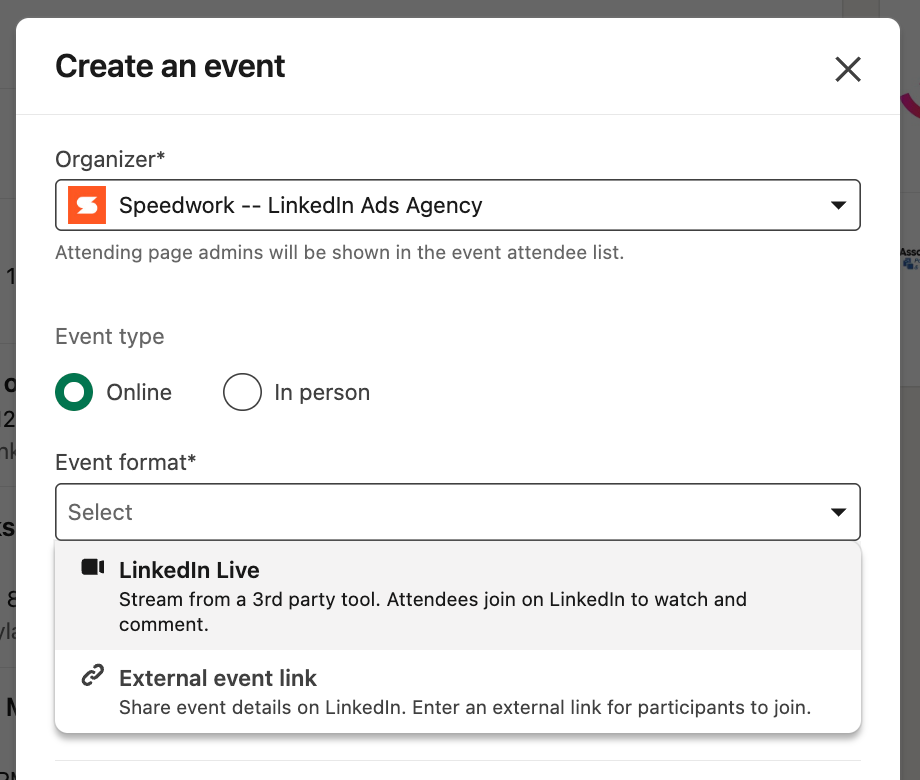
Create the event with your Company Page as the Organizer, then pick the event type. For online events, choose LinkedIn Live or an External event link.
Step 2: Create the event from your Company Page, not your profile
You can create an event from your personal profile or from a Company Page. For B2B lead gen, the Company Page wins.
| Feature | Personal profile | Company Page |
|---|---|---|
| Create an online or in-person event | Yes | Yes |
| Add speakers | Yes | Yes |
| Invite connections (up to 1,000 per week) | Yes | Yes, each Page admin |
| Registration form (lead capture) | No | Yes |
| Zapier / CRM integration for registrants | No | Yes |
| Event Ads | No | Yes |
| Thought Leader Ads on speaker posts | No | Yes, for LinkedIn Live events |
The registration form alone is the deciding factor. Without it, you get a list of attendee names on LinkedIn. With it, you get first name, last name, email, job title, company, and country for every registrant, ready to drop into your CRM.
To create a Page event, you need to be a super admin or content admin on the Page.
How to do it: open the Create an event window and use the Organizer dropdown (shown in the Step 1 screenshot) to select your Company Page instead of your name. Only Pages you admin will appear in the list.
Step 3: Design a banner that stops the scroll
Your event banner shows up in the feed, in invitations, in notifications, and on the event page. It has one job: get someone to stop scrolling and click.
Think of it like a YouTube thumbnail, not a conference slide.
- Put faces on it. Speaker headshots outperform logos and stock imagery. People register to hear from people.
- Use 7 words or fewer. The event title is already shown below the banner. The banner should carry the hook, not repeat the title. Think like an ad or billboard.
- Go high contrast. Bold colors and large type that’s readable on a phone.
- Show the date. “Thu, Oct 22” in the corner gives the event urgency.
- Keep it on brand, but don’t make it boring. The brand colors set the frame; the hook does the work.
Specs: Upload your cover image at 1280×720 pixels. LinkedIn requires a minimum width of 480 pixels and recommends a 16:9 ratio, and 1280×720 is exactly 16:9. Event Ads use a 4:1 image pulled from the event page, so keep the important elements centered in case the image is cropped in the ad.
Here are two banners we designed for the same LinkedIn Live. Both follow the rules above. The second leans harder into the thumbnail style.
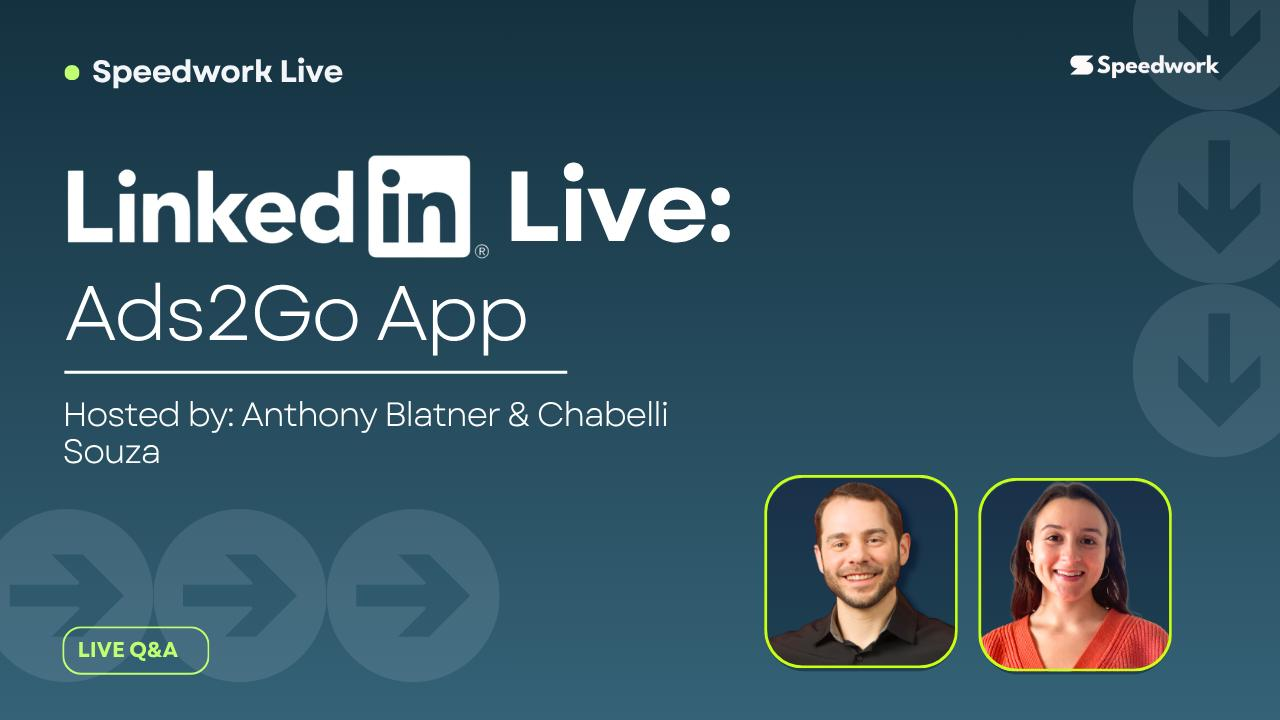
Version 1: clean and on brand, with both hosts’ faces and the topic front and center.
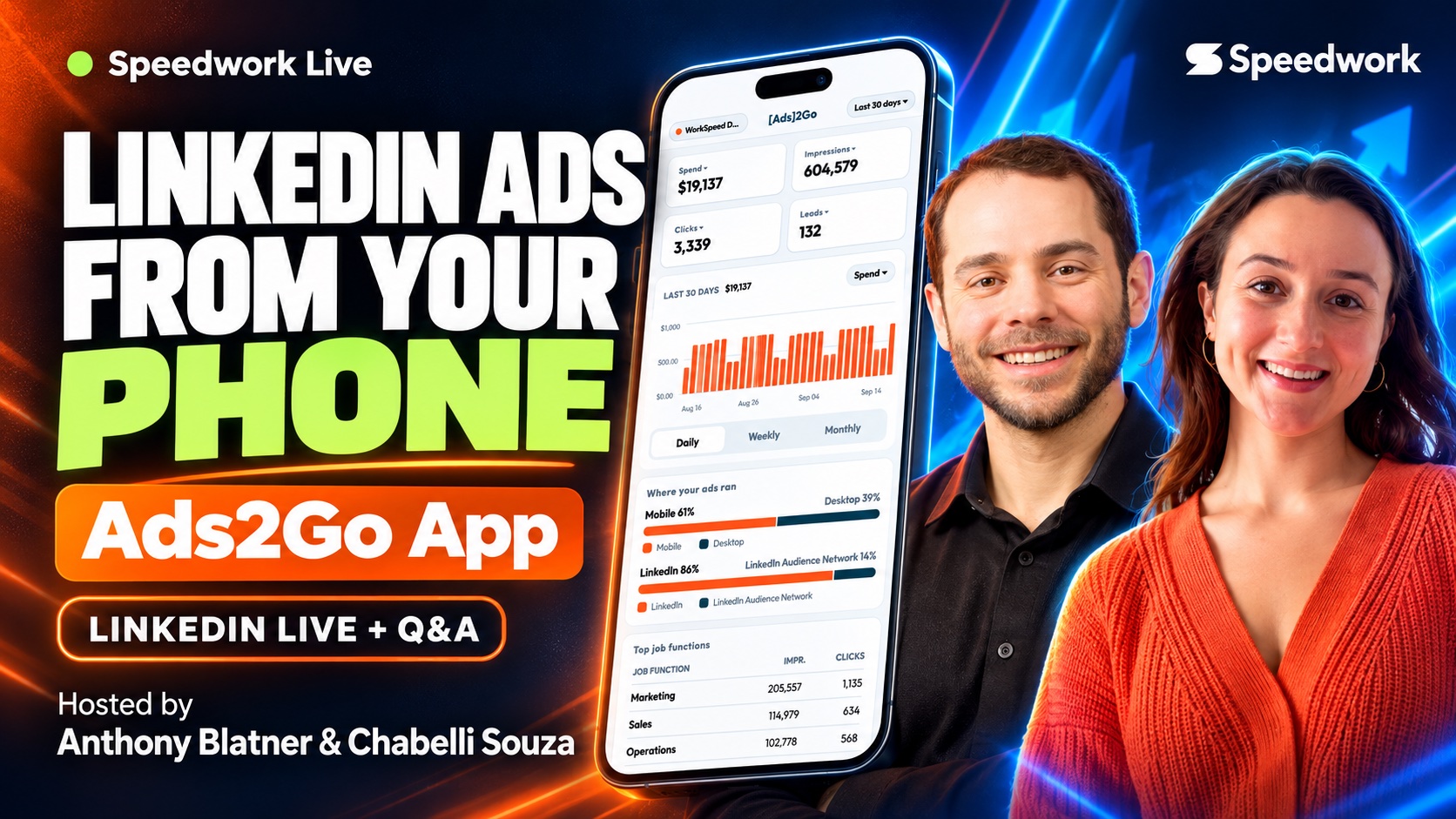
Version 2: thumbnail style, with a five-word hook, the product on screen, and larger faces.
Step 4: Pick a day and time that matches your goal
The internet says a lot of things about the best time to host a webinar. In our experience, it depends on what you’re optimizing for: registrations or show-ups.
Goldcast’s 2026 B2B Webinar Benchmark Report, which analyzed over 26,000 webinars, found:
- Tuesday through Thursday drive the most registrations. Wednesday (about 31%) and Thursday (about 30%) together account for roughly 60% of all registrations.
- Friday converts registrants into attendees best. Friday’s attendance rate was about 47%, compared to about 39% on Wednesday and Thursday.
- Almost nobody hosts on Friday. Only about 7% of webinars ran on a Friday.
That last point is the opportunity. A Friday midday event has less competition for your audience’s calendar, and the people who register are more likely to show up. We’ve had strong results with Friday around noon, when calendars tend to be lighter and people are winding down the week.
Our take: Go with midday Friday unless there are other constraints or trends with your audience or industry. And promote it heavily during the week.
Whatever you choose, give yourself at least 2 to 3 weeks of lead time so you have enough invite cycles (see Step 7).
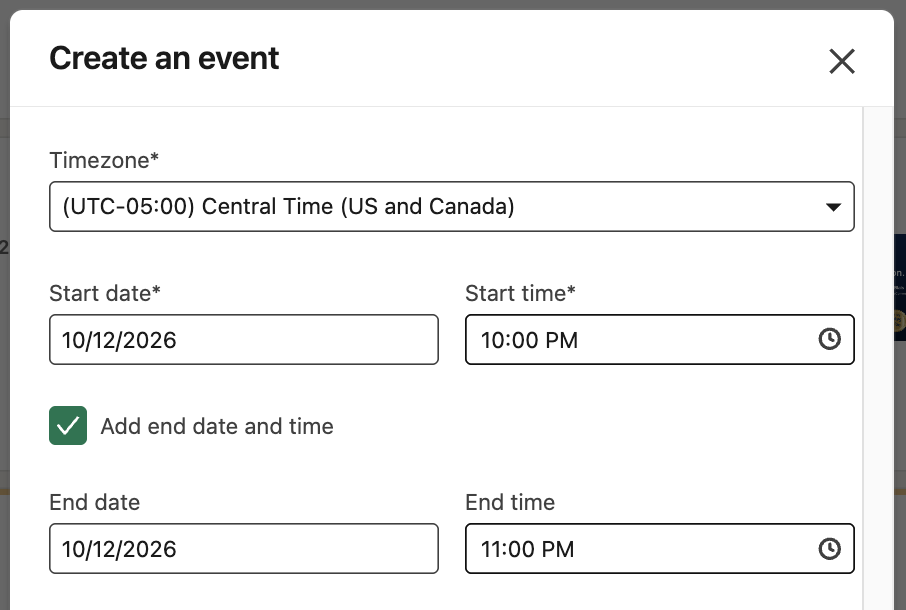
Set the time zone to where most of your audience is, and add an end time so registrants know the commitment up front.
Step 5: Add your speakers
Speakers make the event more credible and, more importantly, they multiply your reach.
When you add a speaker, they appear on the event page and in the Highlights section of their own profile, and LinkedIn encourages them to share the event with their network. Each speaker also gets their own attendee invitation allowance, which is the single biggest lever for filling your event (Step 7).
A few rules:
- Speakers must be 1st-degree connections of the person creating the event.
- Pick speakers with relevant networks, not just impressive titles. A customer with 3,000 connections in your ICP is worth more on the invite list than a keynote name whose network is mostly outside your market.
- Brief speakers before launch. Send them the banner, a draft post, and a reminder about invitations. A one-page “speaker kit” makes this easy.
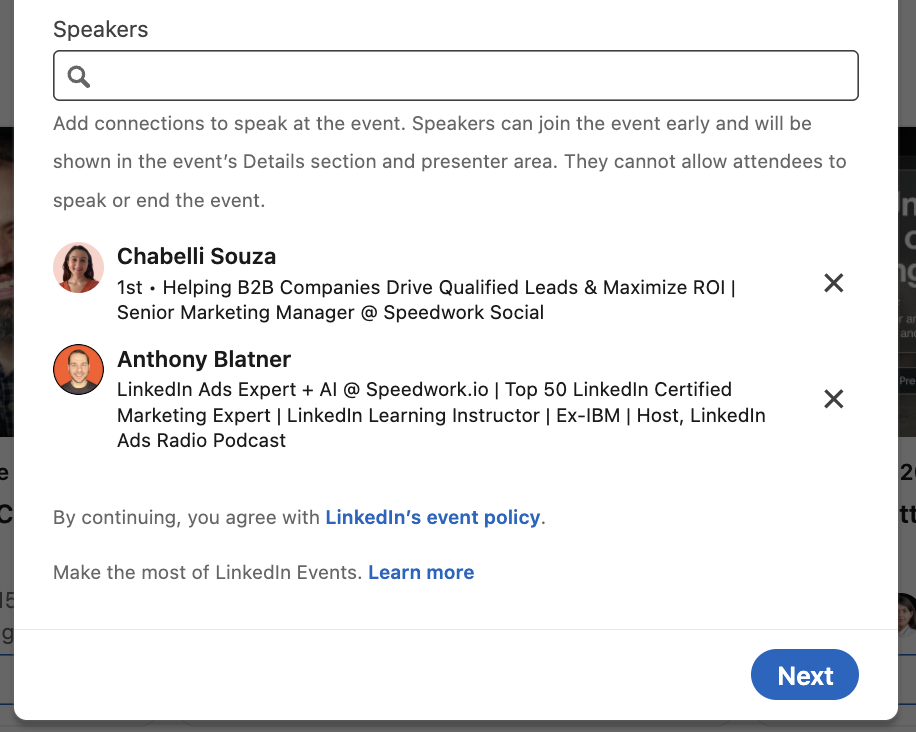
Speakers appear on the event page and get their own weekly invitation allowance. They must be 1st-degree connections of the event creator.
Step 6: Attach a registration form and connect it to your CRM
On Company Page events, you can turn on a registration form. Registrants fill it in with one click, because LinkedIn prefills it from their profile.
The form collects first name, last name, email address, job title, company name, and country/region, and it requires a link to your privacy policy.
Two things most people miss:
- You can swap the form out. After the event is created, you can remove or replace the registration form as long as the event hasn’t started, and customize the fields it requires.
- You can connect the form to automation tools. LinkedIn supports Zapier for event registration forms. Use it to push every registrant into HubSpot, Salesforce, a Google Sheet, or your email platform in real time, then trigger reminder emails and sales alerts from there.
Why the integration matters: LinkedIn notes there can be a four to five day delay before a new registrant shows up in the downloadable registration list. If you’re relying on a manual export, you’ll be working with stale data during the most important week of promotion. In our experience the lag is usually shorter, but set up Zapier anyway so you’re never working from a stale list.
Registrant data is available to download from the event’s Analytics tab for up to one year from the day each person registers.
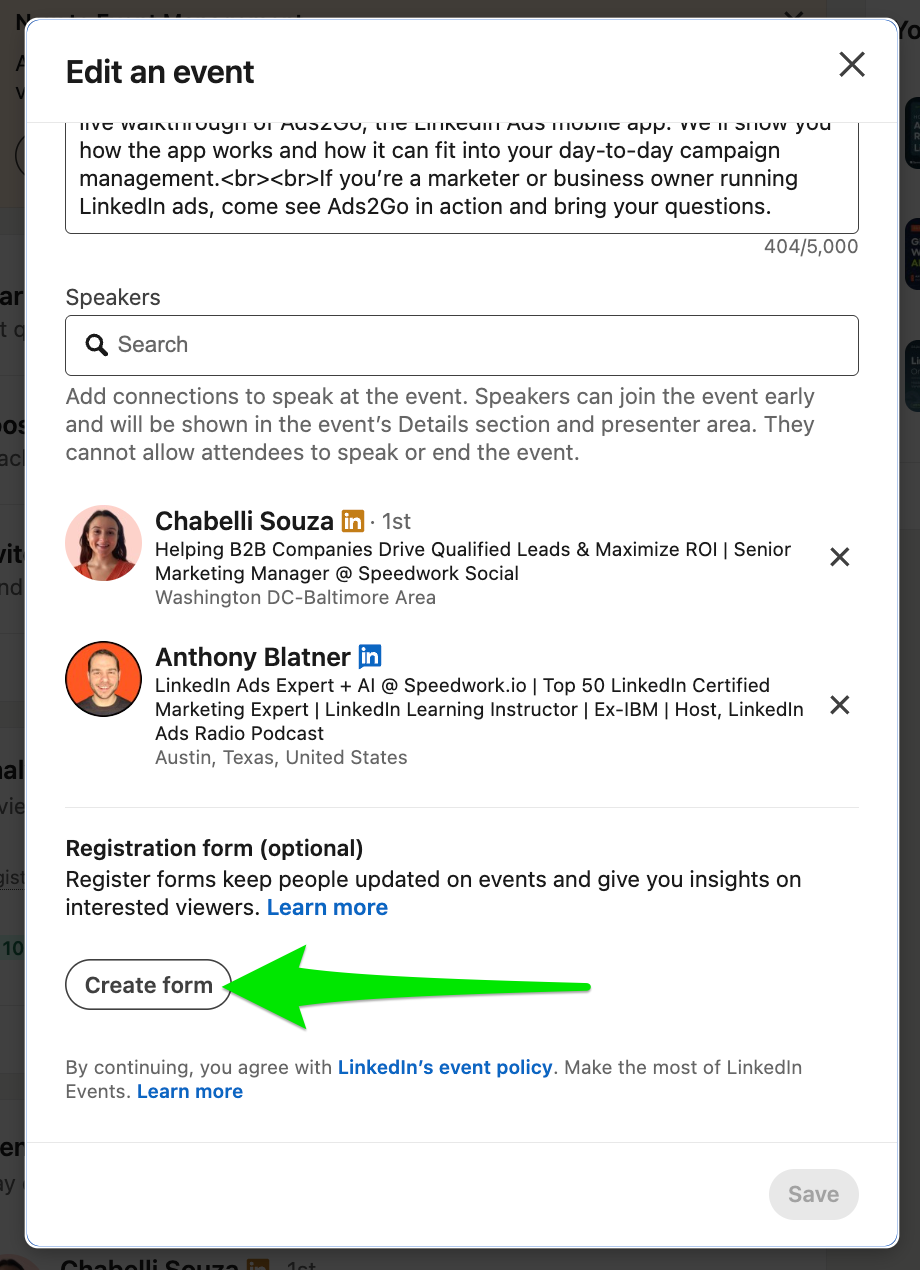
The registration form option appears once the event exists. Open Edit event and click Create form.
To customize the form, open the event’s admin menu and go to Manage event, then Manage forms. This builds a Lead Gen Form the same way Campaign Manager does, so you can add custom questions like company size, current tools, or what attendees want covered.
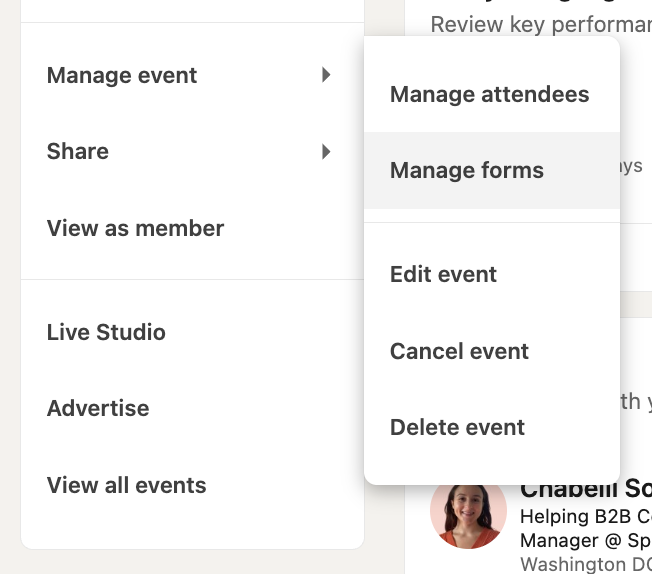
Manage event, then Manage forms, is where you build a custom registration form.
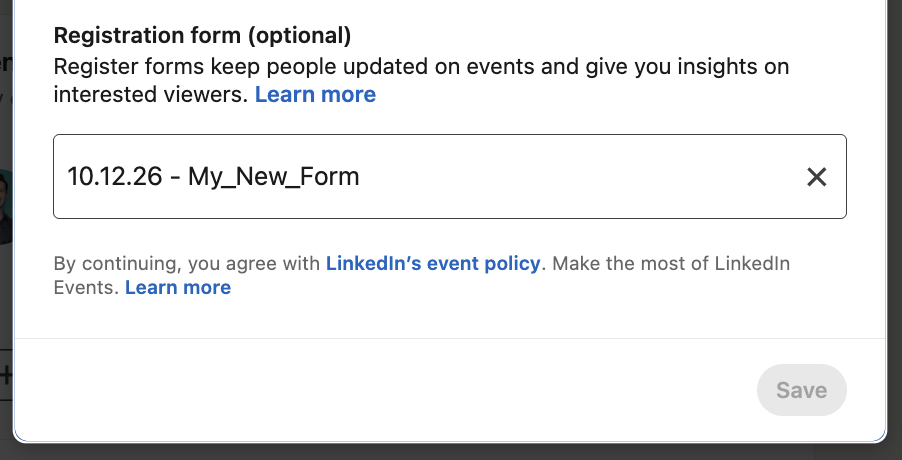
Back in Edit event, select your new form in the Registration form field and save.
One catch: in our experience, HubSpot’s native LinkedIn integration doesn’t sync Event registration forms. Zapier bridges the gap. Use the LinkedIn Ads trigger New Lead Gen Form Response (Organic Content) and set the Lead Type to Events.
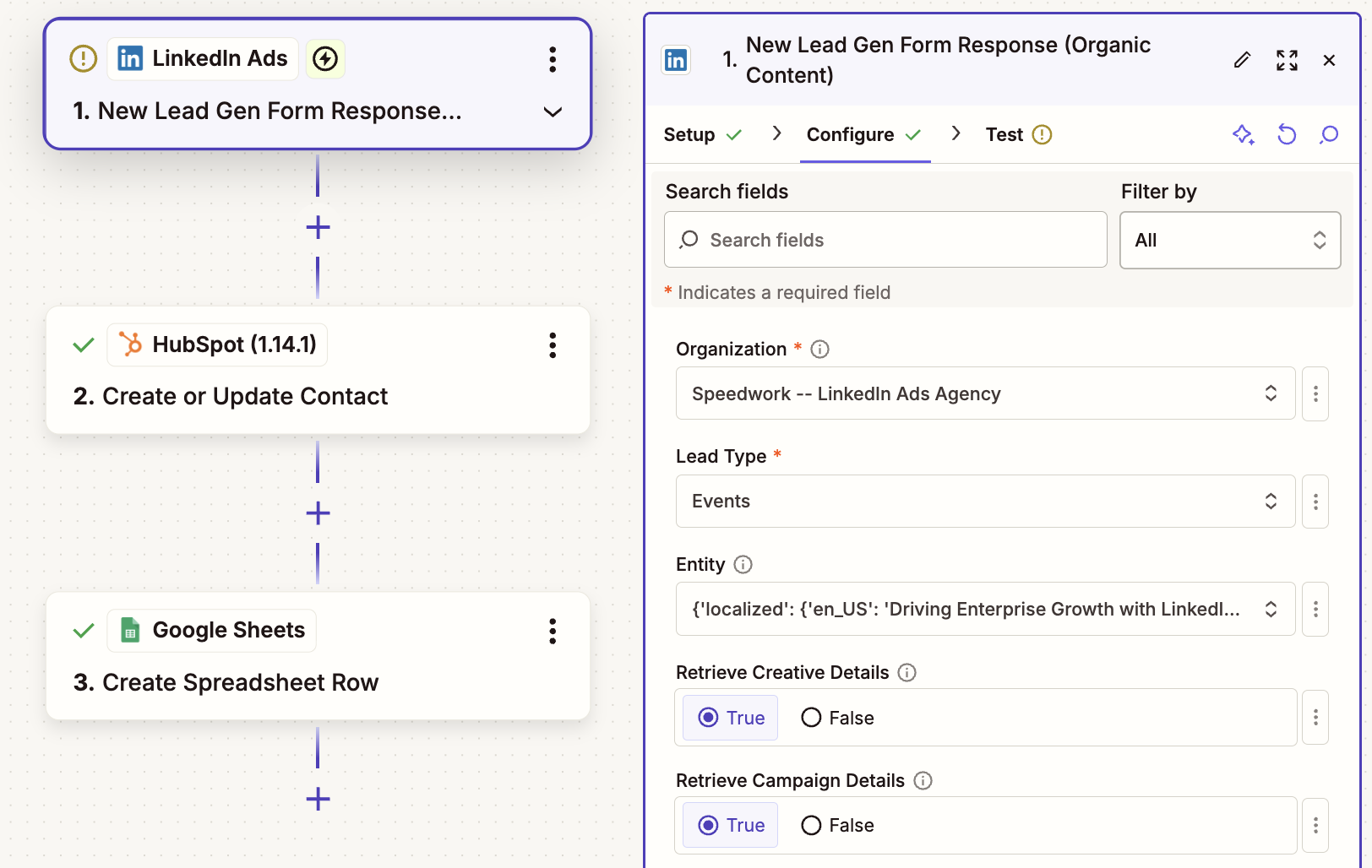
Our setup: every new registrant is created or updated as a HubSpot contact and logged to a Google Sheet.
Step 7: Invite 1,000 prospects per week, per speaker
This is the highest-leverage step in the whole guide, and the one most teams skip.
LinkedIn lets organizers, Page admins, and attendees each send up to 1,000 event invitations per week. That limit is per person, which means every speaker and every Page admin brings their own 1,000.
Do the math: an event with 3 speakers and 3 weeks of promotion can send up to 9,000 targeted invitations, at no cost.
Invitations go to 1st-degree connections, so the size and relevance of each speaker’s network matters.
How to do it efficiently:
- Open the event and click Share, then Invite.
- Use the filters to narrow the list to your ICP. Location + Industry is the combination we use most.
- Use the Select all checkbox to select everyone in the filtered list, then send.
- Repeat with different filter combinations until you hit 1,000, then do it again next week.
Pro tip: Put a recurring 15-minute calendar block on every speaker’s calendar each Monday for invites. It’s the easiest way to make sure the weekly allowance actually gets used.
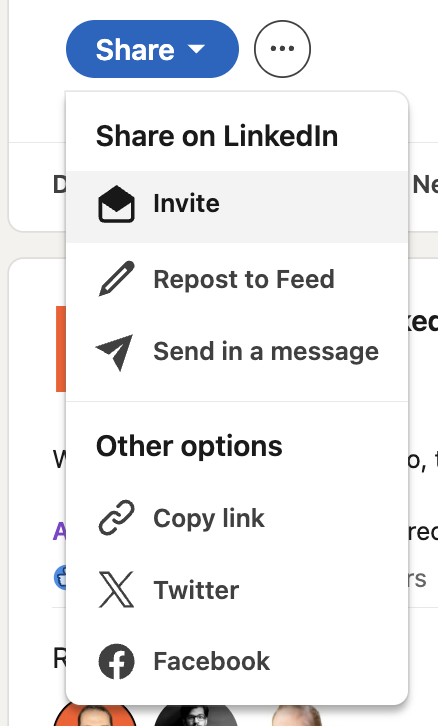
To send invitations, open the event and click Share, then Invite.
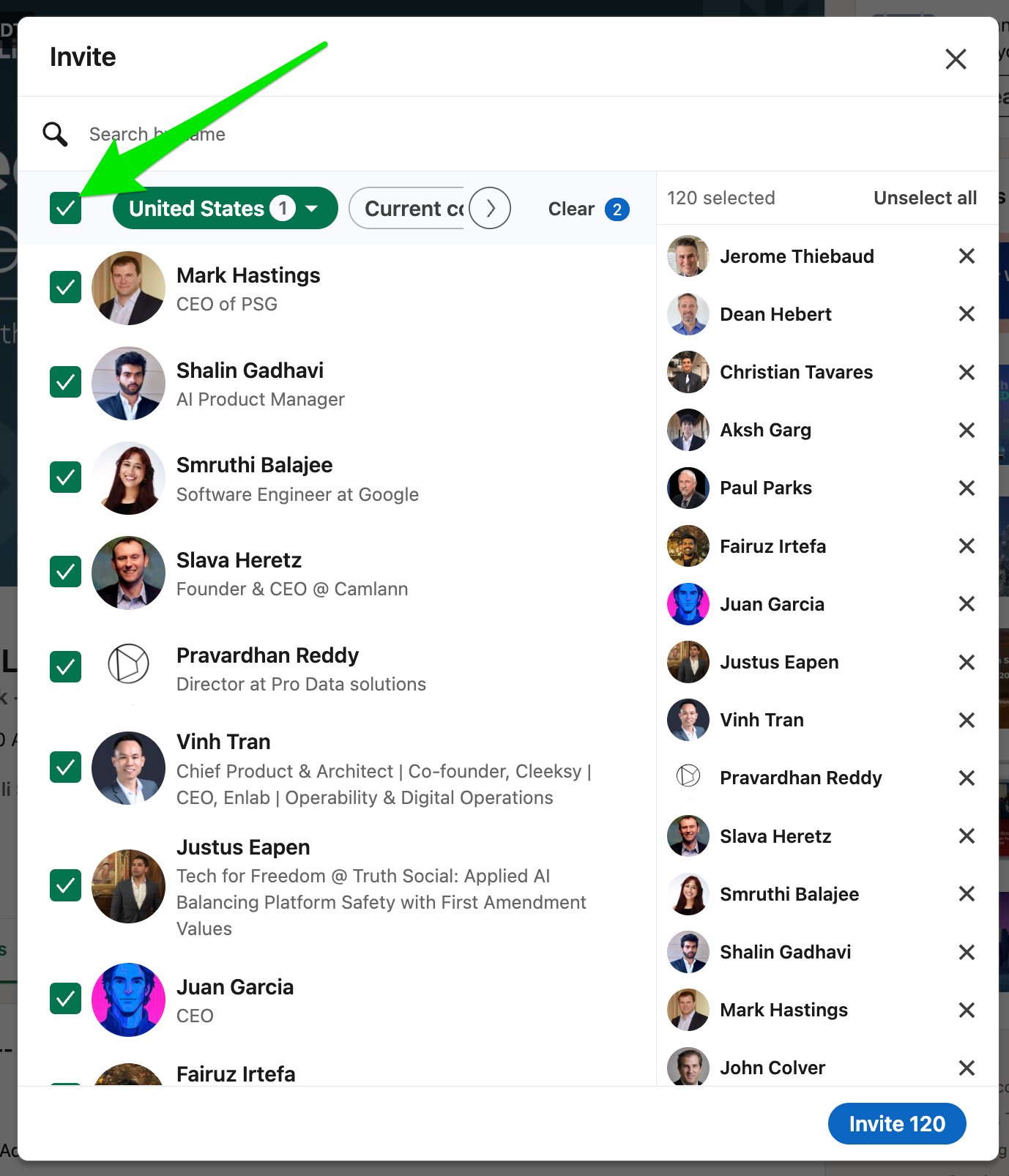
Filter your connections (here, by location), check Select all, and Invite. This batch invited 120 people in one click.
Step 8: Promote with organic posts
Invitations reach your network. Posts reach your network’s network.
Plan a simple organic sequence across the Company Page and every speaker’s profile:
- Announcement post (week 1): Why this event, who it’s for, and what attendees will walk away with. Share the event so the event card appears in the post.
- Speaker spotlight posts (week 2): Each speaker posts about the one thing they’re most excited to talk about.
- “Last chance” post (day before or day of): Short and urgent, with the attendee count if it’s impressive.
- Recap post (after): Key takeaways and a link to the replay.
Posts from speakers almost always outperform posts from the Company Page. People engage with people. Give speakers drafts so it’s easy, but let them rewrite in their own voice.
For more on building a consistent posting rhythm, see our LinkedIn organic playbook.
Step 9: Put paid behind it with Thought Leader Ads and Event Ads
Organic gets you the warm audience. Paid gets you the right people who aren’t connected to your speakers yet.
Thought Leader Ads let you boost a speaker’s own post about the event to your target audience. LinkedIn supports Thought Leader Ads for posts from attendees of LinkedIn Live events created by the Page linked to your ad account, with Brand Awareness and Engagement objectives and a CTA button. This is our favorite way to promote events: the ad looks and feels like a person recommending the event, not a company advertising one.
Note: The post must include the LinkedIn Event tile (the card with the banner and Attend button) to be boostable. Paste the event link into the post and let the tile generate automatically, or share the event with Repost to Feed or Repost with comments. Either way, the post becomes the right type to run as a Thought Leader Ad.
Read more in our Thought Leader Ads tips.
Event Ads promote the event itself from your Company Page. The two objectives we recommend most are Lead Generation, to capture registrants with their contact details inside LinkedIn, and Website Visits, to send people to the event page or your own registration page. For events hosted on LinkedIn, the ad shows a static image before the event, the livestream while you’re live, and the replay afterward, so a single campaign keeps working across the whole event lifecycle.
How we usually split it:
- Thought Leader Ads on the strongest speaker posts to cold ICP audiences
- Event Ads retargeting Company Page followers, website visitors, and engaged audiences
- A small “we’re live now” push during the stream if you’re running a LinkedIn Live
If you’re running Event Ads with a website visits objective or sending people to an external event link, set up conversion tracking. Our guide to tracking LinkedIn Ads event conversions walks through it.
Here’s how to boost a speaker’s event post as a Thought Leader Ad:
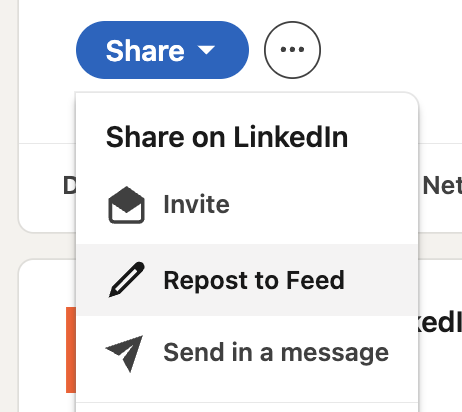
1. Have a speaker share the event to their own feed with Share, then Repost to Feed, adding a line about why their network should attend.
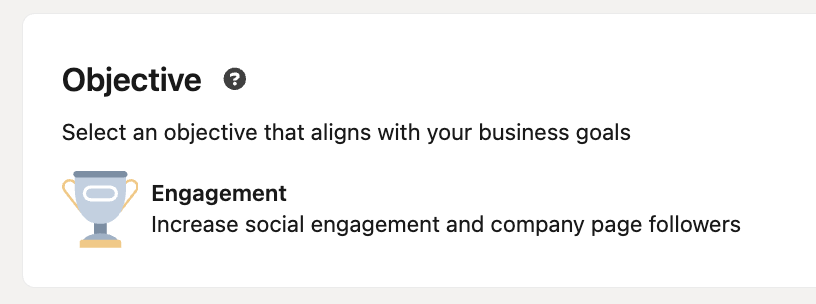
2. In Campaign Manager, create a campaign with the Engagement objective.
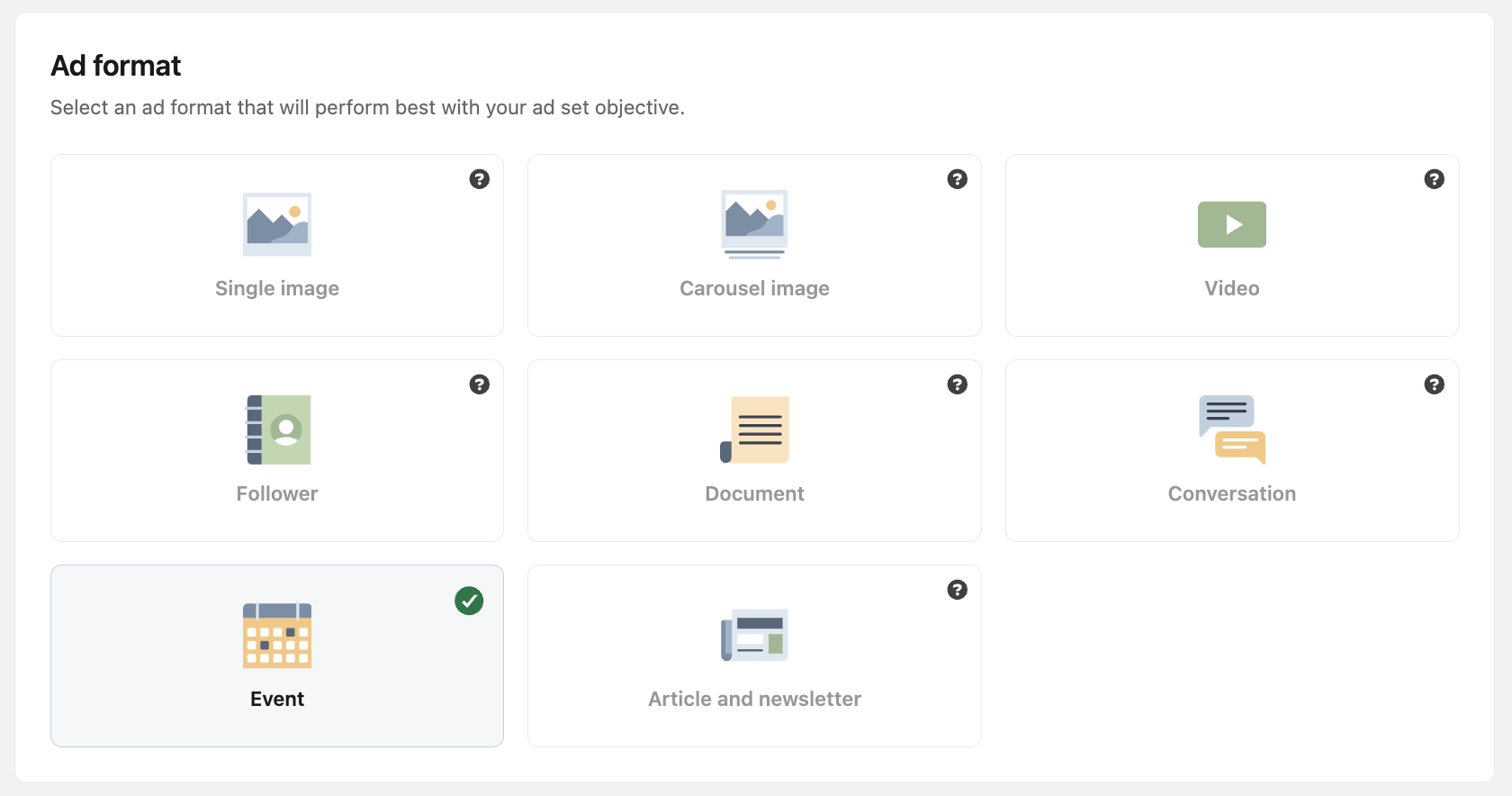
3. Choose the Event ad format.
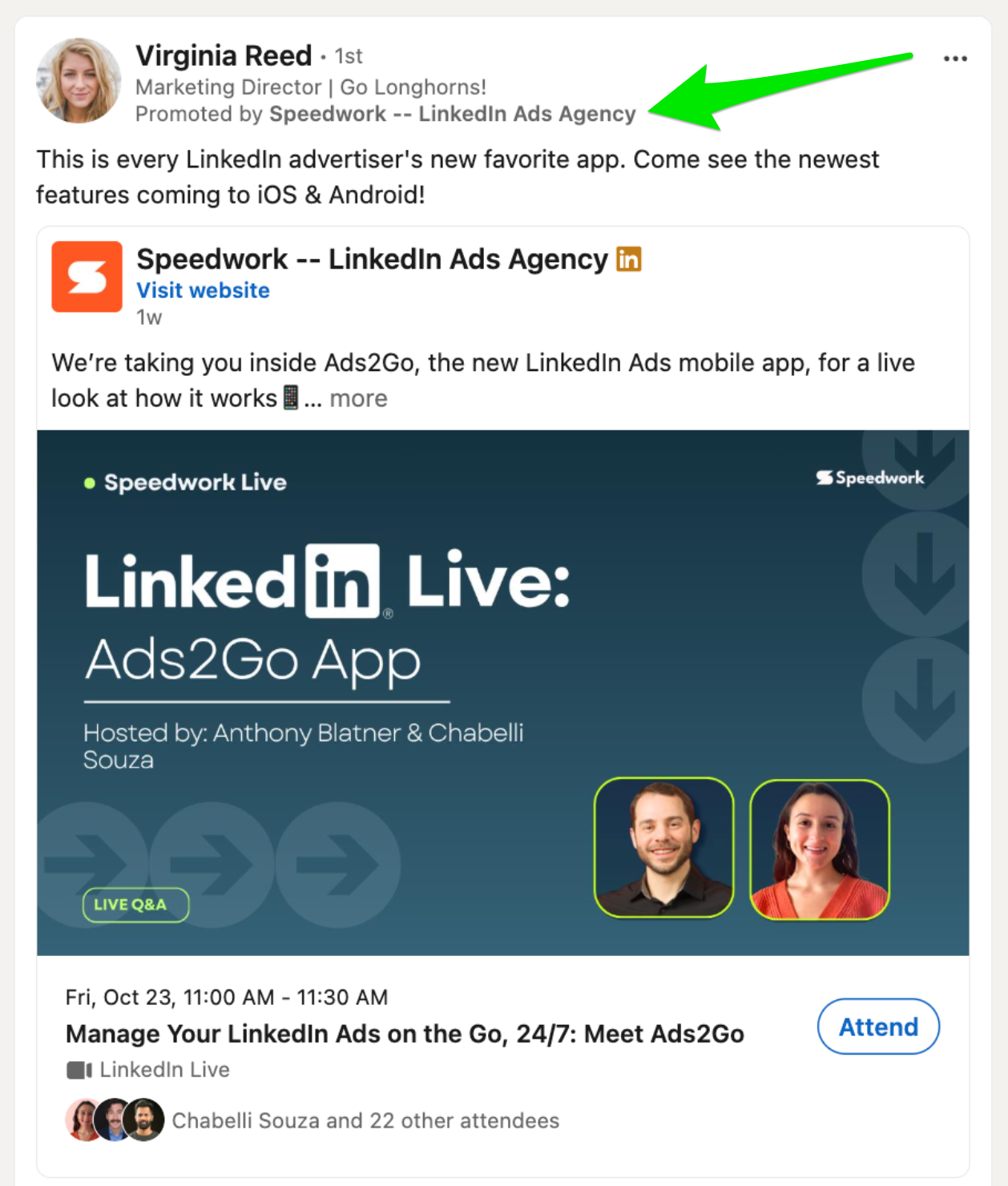
4. Select the speaker’s post as a Thought Leader Ad. It runs as a post from a real person, labeled Promoted by your Company Page.
Step 10: Repurpose the replay with auto-generated clips
The event ending is not the end of the event.
LinkedIn now turns your LinkedIn Live recording into short-form clips. After the event ends, go back to the event’s management page and open the video editor. LinkedIn generates recommended clips automatically (they can take up to a day to appear once the recording is available), and splits the recording into chapters so you can find moments to trim yourself. Each clip can run from 3 seconds to 15 minutes, with up to 20 clips per event. One more reason to host from your Company Page: only Page admins can create event clips.
You can post each clip on LinkedIn, download it, or send it straight to your Campaign Manager media library. That gives you a bank of short-form video for the weeks after the event:
- Post the 2 or 3 best clips from each speaker’s profile
- Send the strongest clip to Campaign Manager and run it as a video ad to promote the replay or your next event
- Use chapters to make the full replay easier to skim for people who missed it
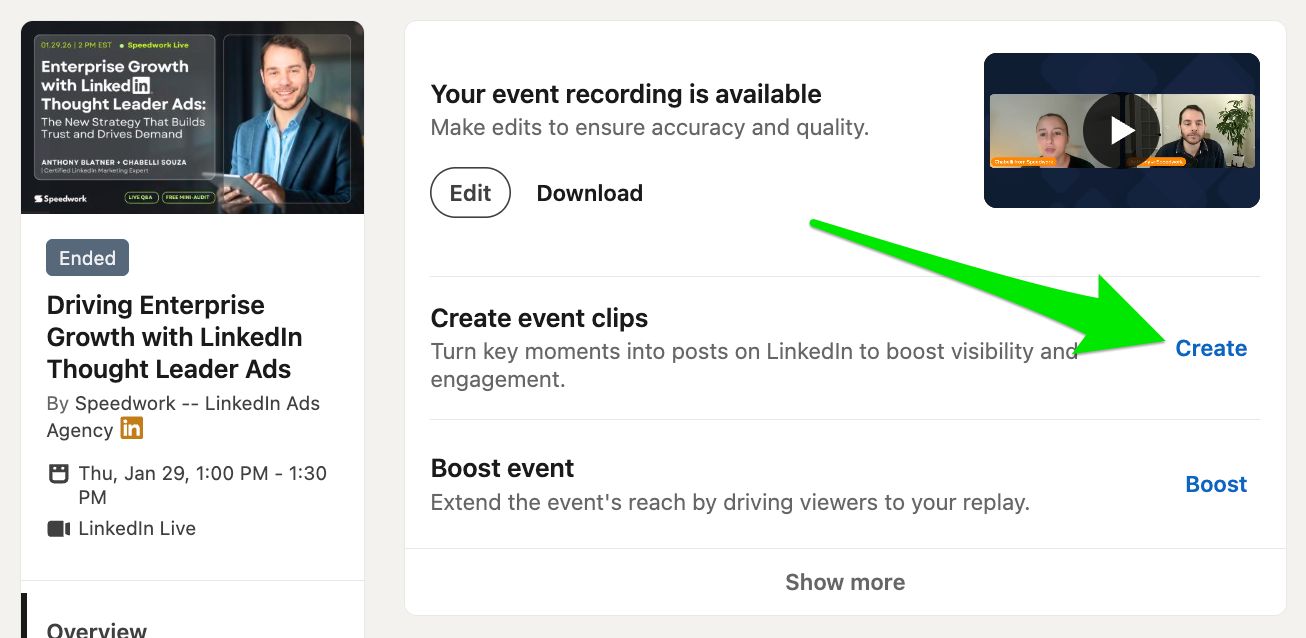
After the event ends, click Create next to Create event clips. LinkedIn suggests clips automatically.
LinkedIn Events checklist
Before you publish:
| Check | Done |
|---|---|
| Event type and format chosen (you can’t change them later) | ☐ |
| Created from the Company Page | ☐ |
| Thumbnail-style banner at 1280×720 with speaker faces | ☐ |
| Day and time chosen for your goal (registrations vs. attendance) | ☐ |
| Speakers added and briefed with a speaker kit | ☐ |
| Registration form attached, privacy policy linked | ☐ |
| Zapier connected to CRM and email | ☐ |
Each week until the event:
| Check | Done |
|---|---|
| Every speaker and Page admin sends 1,000 invites | ☐ |
| Organic posts live from the Page and each speaker | ☐ |
| Thought Leader Ads and Event Ads running | ☐ |
After the event:
| Check | Done |
|---|---|
| Recap post with replay link | ☐ |
| Clips posted and the best one boosted | ☐ |
| Registrants and attendees followed up by sales | ☐ |
Frequently asked questions
Should I create a LinkedIn Event from my personal profile or my Company Page?
Use your Company Page for any event where lead capture matters. Only Page events can use a registration form, connect registrants to Zapier, and run Event Ads. A personal profile event is fine for an informal meetup where you don’t need registrant contact details.
How many people can I invite to a LinkedIn Event?
Each organizer, Page admin, and attendee can send up to 1,000 invitations per week, shared across all of your events. Invitations go to 1st-degree connections. Every speaker gets their own 1,000, so adding speakers with relevant networks is the fastest way to grow registrations.
What’s the difference between LinkedIn Live and an external event link?
LinkedIn Live streams the event on LinkedIn using a third-party tool like StreamYard or Restream, so viewers, registrants, and the replay stay on LinkedIn. An external event link sends people to another platform such as Zoom, which makes attendance harder to track and limits Thought Leader Ad options.
What is the best day and time to host a LinkedIn Event?
Tuesday through Thursday drive the most registrations, but Friday converts more registrants into attendees, according to Goldcast’s 2026 benchmark of over 26,000 B2B webinars. Fridays also have the least competition. We recommend testing Friday around noon in your audience’s main time zone if attendance is your priority.
What size should a LinkedIn Event banner be?
Use 1280×720 pixels. LinkedIn requires a minimum width of 480 pixels and recommends a 16:9 ratio, which 1280×720 matches exactly. Design it like a YouTube thumbnail: speaker faces, 7 words or fewer, high contrast, readable on mobile.
Can I connect a LinkedIn Event registration form to my CRM?
Yes. LinkedIn supports Zapier for event registration forms, so you can send each registrant to HubSpot, Salesforce, a spreadsheet, or your email tool automatically. That’s worth doing because the downloadable registrant list can lag four to five days behind.
Can I run ads for a LinkedIn Event?
Yes. Event Ads promote events from your Company Page, and we recommend the Lead Generation or Website Visits objectives. Thought Leader Ads can boost speakers’ and attendees’ posts about LinkedIn Live events created by your Page.
Want help filling your next LinkedIn Event?
A well-built LinkedIn Event is a full-funnel campaign: a landing page, a distribution engine, and a lead form in one place. The difference between an empty room and a full one is usually promotion, not the topic.
As a LinkedIn ads agency, Speedwork helps B2B companies plan, promote, and fill LinkedIn Events with organic content, speaker invitations, and Thought Leader Ads. Book a free consultation to talk through your next event.