The short answer
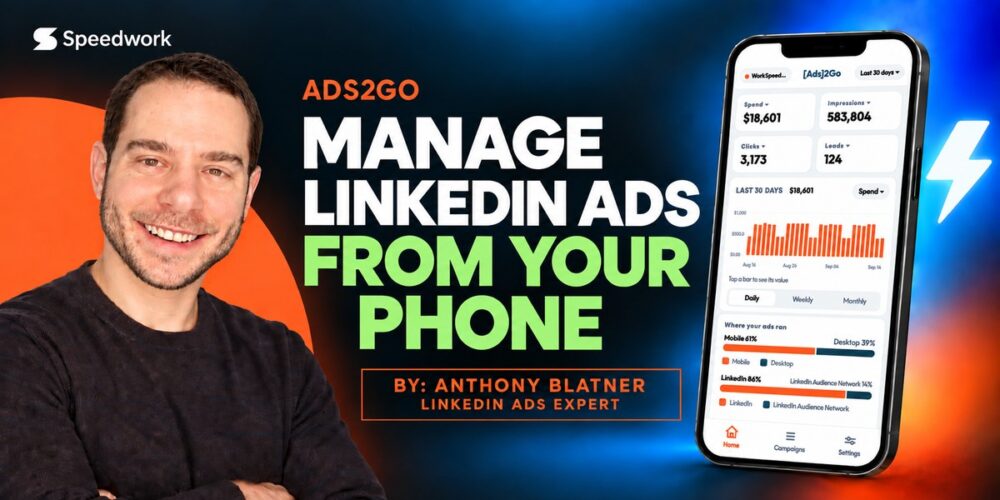
LinkedIn does not publish a mobile app for Campaign Manager. Your options are to open Campaign Manager in a phone browser, which is a desktop interface squeezed onto a small screen, or to use a dedicated mobile app. We built one called Ads2Go. It is free on iPhone and Android, it signs in with your existing LinkedIn account, and it covers the two things advertisers actually need away from a desk: checking performance and making a quick change.
The problem nobody talks about
LinkedIn Ads is a desktop product. Which is fine, right up until you are not at a desk.
And here is the thing y’all: the moments when you most need to look at an ad account are almost never the moments you are sitting in front of one.
You are at a conference and a client asks how their campaign is doing. It is Saturday morning and something in the back of your mind says you left a test campaign running. A new ad went live at 9am and you want to know if it is delivering before your 2pm call. A budget is pacing hot and you would reallllly like to knock it down before it burns another four hours at that rate.
Every one of those is a thirty-second question. And every one of them costs you a whole laptop. 😅
Yes, you can open Campaign Manager in a mobile browser. I have done it in an Uber. It technically loads. But it is a dense, data-heavy interface built for a 27-inch monitor, so on a phone you get pinching, zooming, sideways scrolling, and a very real chance of tapping the wrong row. Nobody pauses a live campaign that way on purpose.
What your options actually are
There are three, and it is worth being honest about all of them.
1. Campaign Manager in a mobile browser. Free, already available, and the full feature set is there. It is also unpleasant enough that most advertisers give up and wait until they are back at a computer. Fine for a true emergency, bad as a habit.
2. A reporting dashboard. Looker Studio, Databox, or whatever your agency has built. These are genuinely good at what they do, and they look fine on a phone. But they are read-only. You get to watch the problem happen. You do not get to fix it. Most of them run on delayed data too.
3. A dedicated mobile app. This is the gap. LinkedIn publishes four mobile apps and Campaign Manager is not one of them, and we could not find another app on either store that manages LinkedIn ad campaigns. So we built it.
Introducing Ads2Go
Ads2Go is a free mobile app for LinkedIn ads. We built it at Speedwork Social because we kept wishing it existed, and after ten years and $100M+ in LinkedIn ad spend managed, we got tired of waiting for somebody else to make it. It went live on both app stores in September 2026. 🎉
The design brief was narrow on purpose: the 20% of Campaign Manager you need 80% of the time. It is not trying to be all of Campaign Manager on a phone. It is trying to answer two questions fast, “how are we doing” and “can I fix this right now,” in under a minute.
Here is what is actually in it.
Sign in with LinkedIn, no new account
You tap “Sign in with LinkedIn” and that is the whole setup. No Ads2Go password. No seat to provision. No invite flow. No “first, on a desktop, go to settings.”
Because it runs on LinkedIn’s own OAuth, you see exactly the ad accounts your LinkedIn login already has access to. Not more, not less. If your role on an account is view-only, the app is view-only on that account too, and the controls are disabled with a note explaining why. Your LinkedIn password never touches the app itself.
Your account at a glance
The home screen is the answer to “how are we doing.”
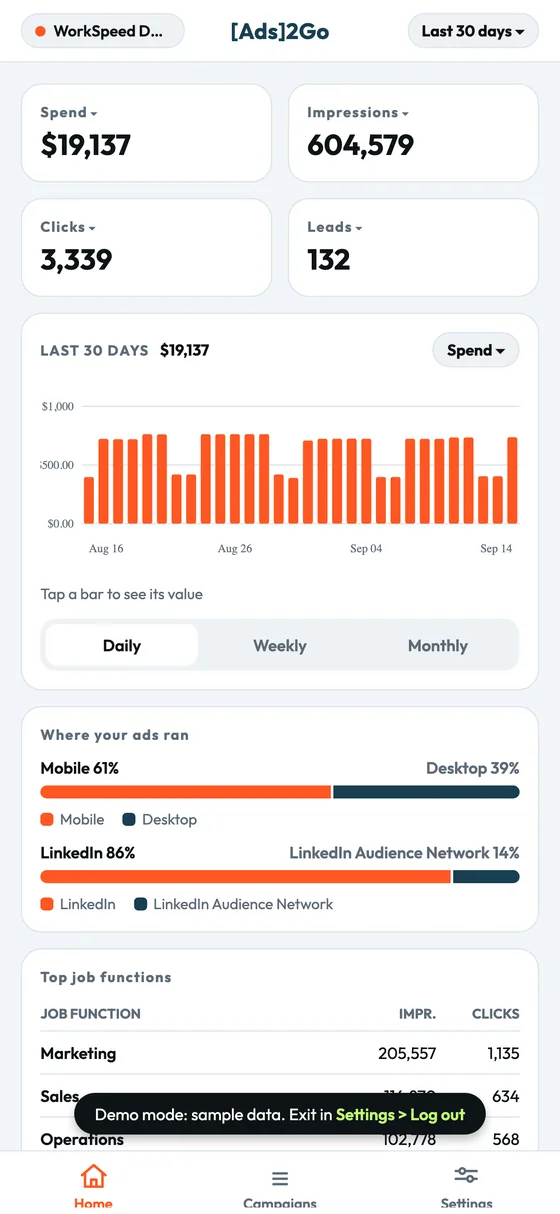
Across the top you get spend, impressions, clicks, and leads for whatever date range you have selected. Those tiles are tappable, so if cost per lead or CTR matters more to you than raw clicks, you swap the tile and it stays swapped.
Under the tiles is a performance chart you can point at any metric: spend, impressions, clicks, leads, conversions, average CPC, CTR, CPM, CPL, or cost per conversion. Tap any point on the chart and it tells you the value and the date for that bucket.
The date range lives in a single pill in the top bar and controls everything on the page. Today, yesterday, last 7, 30, or 90 days, this month, last month, all time, or a custom range you pick yourself.
Breakdowns, so you know who you actually reached
Underneath the chart are the breakdowns that make LinkedIn Ads worth paying for in the first place: job function, seniority, industry, company size, and location. This is the data you use to work out whether you are reaching the right people or just reaching people. If you want to know whether the numbers you are looking at are any good, our LinkedIn Ads benchmarks are the reference we use internally.
There are also two delivery breakdowns: desktop versus mobile, and LinkedIn versus the LinkedIn Audience Network. The Audience Network split in particular is one most advertisers should check far more often than they do.
Campaigns, ad sets, and ads
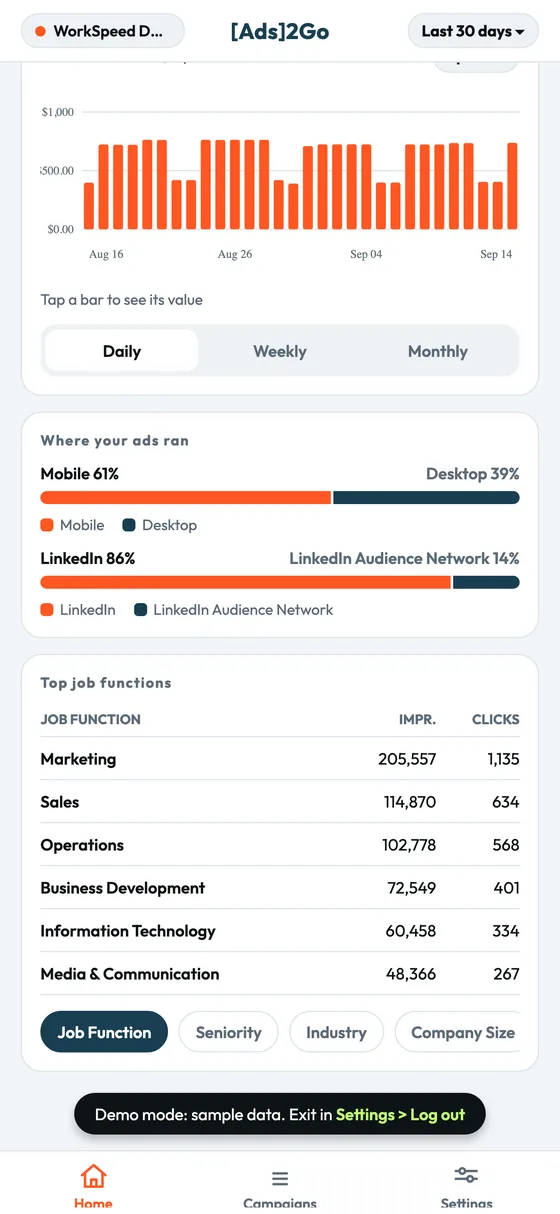
The structure matches what you already know: campaigns, then ad sets inside them, then ads inside those. Tap a campaign to see its ad sets, tap an ad set to see its ads, and the back button walks you back up the tree.
Each row shows the metric set you choose. The default is Performance, which is spend, impressions, leads, and conversions, the same default Campaign Manager uses, so there is nothing to relearn. You can switch to Delivery, Engagement, Conversions, Leads, or Budget and Bid depending on what you are checking.
There is a search bar with filters on every level, and the default filter is active items only, because when you open an ad account on your phone you almost never want to scroll past forty archived campaigns from last year.
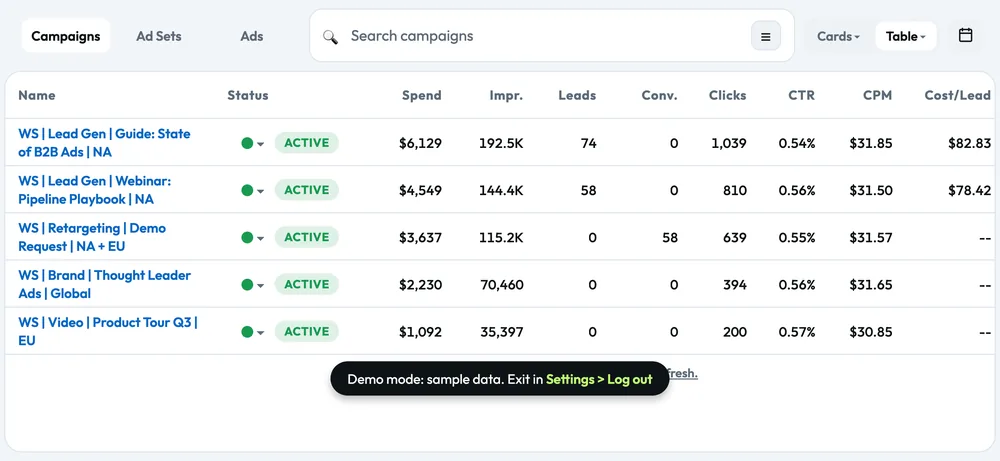
Landscape table view
This is the part that makes people go ooooh in demos.
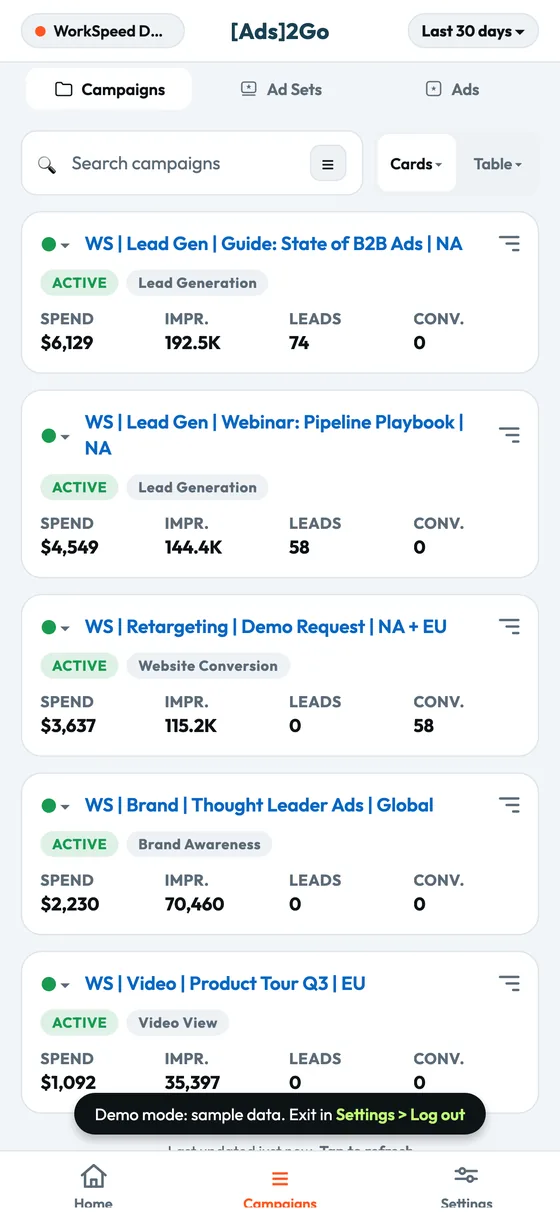
Switch to table view and rotate the phone, and you get a proper spreadsheet: sticky name column on the left, metric columns scrolling horizontally, top and bottom bars hidden so the whole screen is data. It is how you scan forty campaigns in about ten seconds rather than thumbing through forty cards.
Rotate back to portrait and it returns to cards. Cards for one-handed checking, table for actual scanning.
Pause and enable, with a confirmation step
This is the difference between a dashboard and a tool.
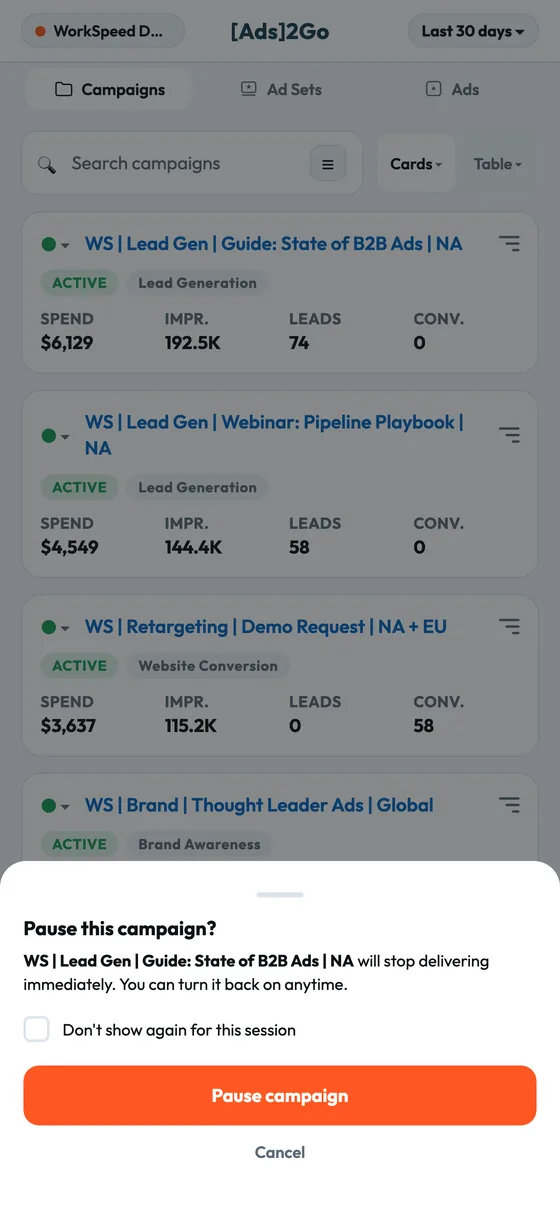
Every campaign, ad set, and ad has a status control. Tapping it does not immediately flip anything. A sheet slides up from the bottom, tells you exactly what is about to change, and asks you to confirm. Both directions, pausing and enabling.
We built it this way on purpose. The number one objection to putting a live ad account on a phone is the fear of a fat-fingered tap costing real money, and that fear is completely fair. So the app is built so it cannot happen by accident. If you are making a run of changes and the confirmations start to drag, there is a “don’t show again for this session” checkbox that lasts 30 minutes.
Paused items also stay in the list where they were rather than vanishing the instant you change them, so you can see what you just did.
Edit budgets, bids, and end dates
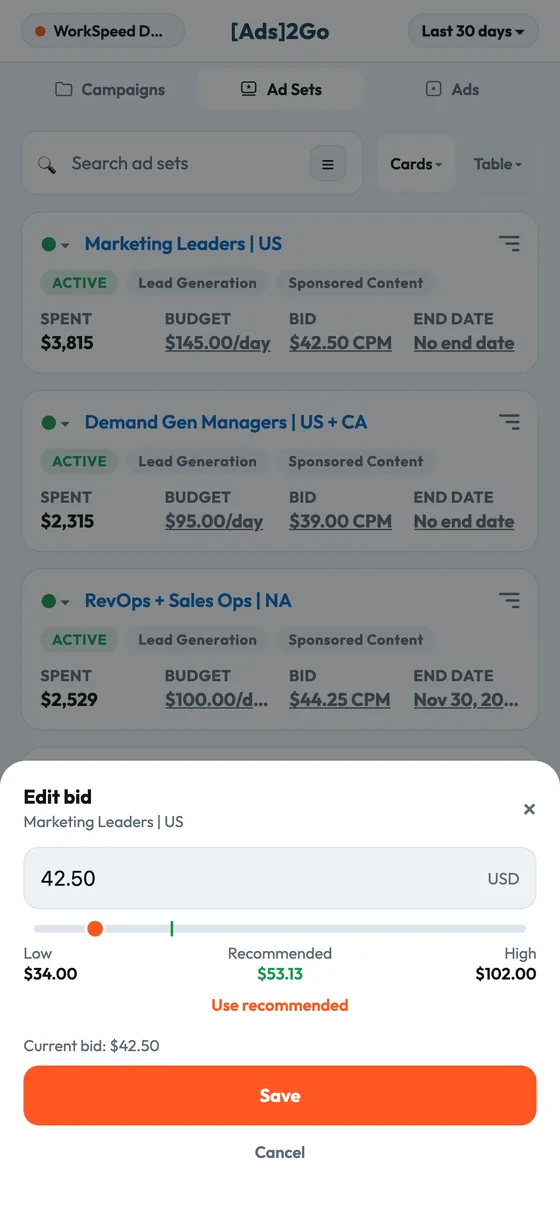
Tap a budget figure and it opens an editor. Same for bids, same for end dates.
The bid editor is the one worth calling out: it pulls LinkedIn’s own suggested bid range and shows you low, recommended, and high, with a one-tap “use recommended” button. You are adjusting a bid against LinkedIn’s actual guidance instead of guessing at a number from memory.
Daily budgets enforce LinkedIn’s minimum so you cannot submit a value that will be rejected, and end dates have to be tomorrow or later.
See the actual ad creative
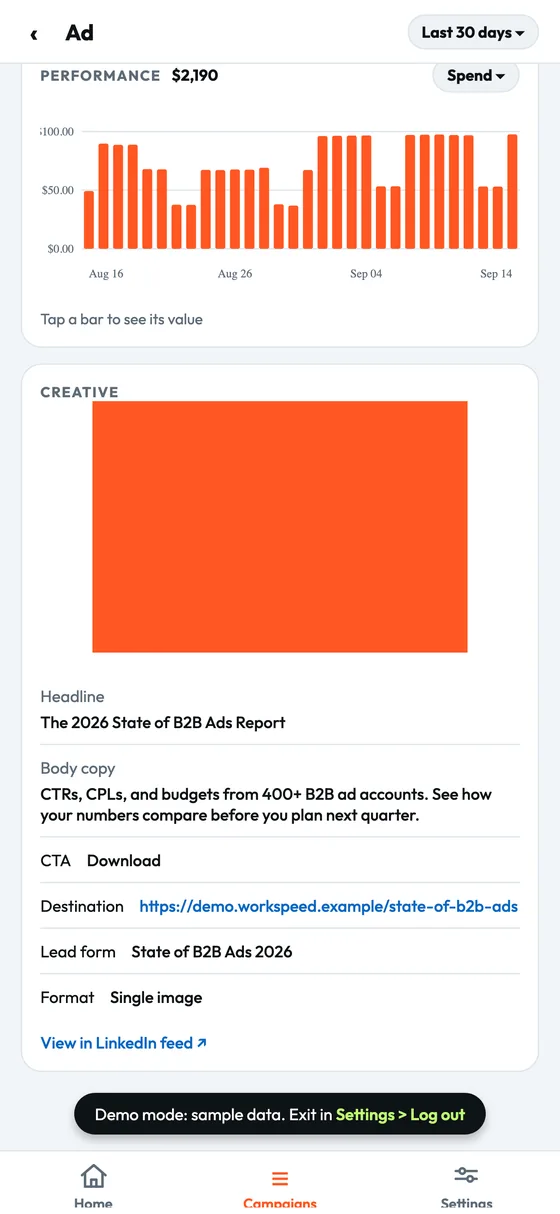
Tap into an individual ad and you get the creative itself, not just a row of numbers. Headline, body copy, the image or the video thumbnail, the call-to-action button, and the destination.
For video ads it pulls the thumbnail and duration. For carousels and multi-image ads it shows the first card and the count. For document ads it links the document. And there is a “view in LinkedIn feed” link that takes you straight to the live post.
Turns out this is the feature I use most when a client says “I saw our ad” and I have to figure out which one they actually mean. 😄 It is also a fast way to audit your own creative against ad examples that are working.
Try it before you connect anything
On the login screen there is a “View demo with sample data” option. Tap it and you get the entire app running on a realistic fictional ad account called WorkSpeed Demo.
It is not a video, not a set of screenshots, and not a limited preview. It is the whole app. No login, no connection to anything real, nothing you can break. If you want to know whether this is worth installing, that is the fastest way to find out.
Built for people running more than one account
If you manage several ad accounts, and most people reading this do, there is a searchable account list and you can star a default account that loads automatically when you open the app. Switching accounts is two taps from anywhere.
What Ads2Go does not do
This is version one, and I would rather tell you the limits up front than have you find them yourself.
You cannot build a campaign from scratch in it. No creating campaigns, ad sets, or ads. No writing ad copy. No building audiences. No lead gen forms. That work belongs on a desktop and I am not going to pretend otherwise.
You also cannot edit targeting, change creative, or manage conversion tracking. Ad set detail screens show you the full targeting so you can check what is running, but changing it happens in Campaign Manager.
It is a companion to Campaign Manager, not a replacement for it. It does the things we reach for every single day: check performance, catch a problem, make a quick fix. That is it, and that is the point.
We are shipping updates fast, and what goes in next is driven by what people actually ask for. There is a feedback box on the Settings screen and it lands straight with our team. I read all of it.
How to get it
Ads2Go is free on both stores. There is no paid tier, no trial, and no credit card.
- iPhone: Download on the App Store
- Android: Get it on Google Play
- More: ads2go.app
Install it, tap “View demo with sample data” to poke around, then sign in with LinkedIn and point it at your own account. Takes about a minute. ⬇️
And if something is missing, tell us. The feedback form in Settings goes straight to the people building it, not into a ticket queue somewhere.
Frequently asked questions
Does LinkedIn have a mobile app for Campaign Manager?
No. LinkedIn does not publish a standalone mobile app for Campaign Manager. You can open Campaign Manager in a mobile browser, but it is the desktop interface rendered on a phone screen, which makes it awkward to read and risky to tap. Ads2Go is a purpose-built mobile app that covers the most common tasks.
Is Ads2Go free?
Yes. It is free on both the App Store and Google Play. There is no paid tier, no trial period, and no credit card required.
Do I need to create an account?
No. You sign in with the LinkedIn account you already use for Campaign Manager. There is no separate Ads2Go username or password.
Is it safe to connect my LinkedIn ad accounts?
The app uses LinkedIn’s official OAuth sign-in, which means you authenticate on LinkedIn’s own site and the app never sees your password. It shows you exactly the ad accounts your LinkedIn login already has access to, and it respects your role on each one, so a view-only role stays view-only. Every change you make requires an explicit confirmation before it is sent.
Can I actually change things, or is it view-only?
You can make changes. You can pause and enable campaigns, ad sets, and ads, and you can edit daily budgets, lifetime budgets, bids, and end dates. Each change asks you to confirm first.
What metrics can I see?
Spend, impressions, clicks, leads, conversions, CTR, CPC, CPM, cost per lead, cost per conversion, reach, frequency, engagements, and dwell time, at the account, campaign, ad set, and ad level. You can also break performance down by job function, seniority, industry, company size, location, device, and placement.
Can I create new campaigns in the app?
Not in version one. Campaign creation, audience building, ad copy, and lead gen forms all still happen in Campaign Manager on desktop. Ads2Go is built for monitoring and quick adjustments.
Does it work for agencies managing multiple client accounts?
Yes. It lists every ad account your LinkedIn login can reach, gives you a searchable account list, and lets you set a default account that loads on open. Switching between clients takes two taps.
Can I try it before connecting my real ad accounts?
Yes. Tap “View demo with sample data” on the login screen and the entire app runs on a fictional sample account. No sign-in, no connection to your real data.
Is Ads2Go made by LinkedIn?
No. Ads2Go is an independent app built by Speedwork Social. It is not affiliated with or endorsed by LinkedIn. LinkedIn is a trademark of LinkedIn Corporation.
What do I need to use it?
An iPhone or Android phone and a LinkedIn account with access to at least one ad account. If you do not have ad account access yet, demo mode still works.
How do I request a feature or report a bug?
There is a “Send feedback and comments” option on the Settings screen in the app. Messages go straight to the team that builds it.
Who built this
We are Speedwork Social, a LinkedIn ads agency in Austin, Texas. We have managed $100M+ in LinkedIn ads for 300+ B2B organizations, which means our team spends most of the working day inside Campaign Manager, and a fair chunk of the non-working day wishing we could check one number without opening a laptop.
We built Ads2Go for ourselves first. It is free because more advertisers using it means better feedback, and better feedback means a better app. Simple as that.
If you would rather have someone else run your LinkedIn ads entirely, that is the other thing we do. Get a free LinkedIn Ads audit and we will tell you what we would change.